Tables
Display data in a table with built-in sorting, filtering, and customizable styling.
Writing prompts for tables
You can create tables in Plotly Studio using natural language in different ways:
Use a quick one-line prompt - concise and conversational:
Show me a table with the last 100 created products
Write structured detailed prompts - precise control and consistency:
Display detailed product information sorted by weight

Chart:
- Type: Table
- Columns: Serial number, Weight, Length, Class, Factory location, Created date

Data:
- All product records
- Sort by weight descending
- Show top 100 products

Options:
- Enable search and filtering
- Add pagination with 25 rows per page
Structured detailed prompts give you more control over which columns to display, sorting, filtering, and other table features. Most examples on this page use this format.
Basic table example
Here's an example of structuring a prompt that creates a basic table. The prompt specifies the columns to include in the table as well as how to sort the table.
<Table Title>

Chart:
- Type: Table
- Columns: <Column names>

Data:
- <Data filtering and sorting>

Options:
- <Interactive options like pagination, filtering, controls>
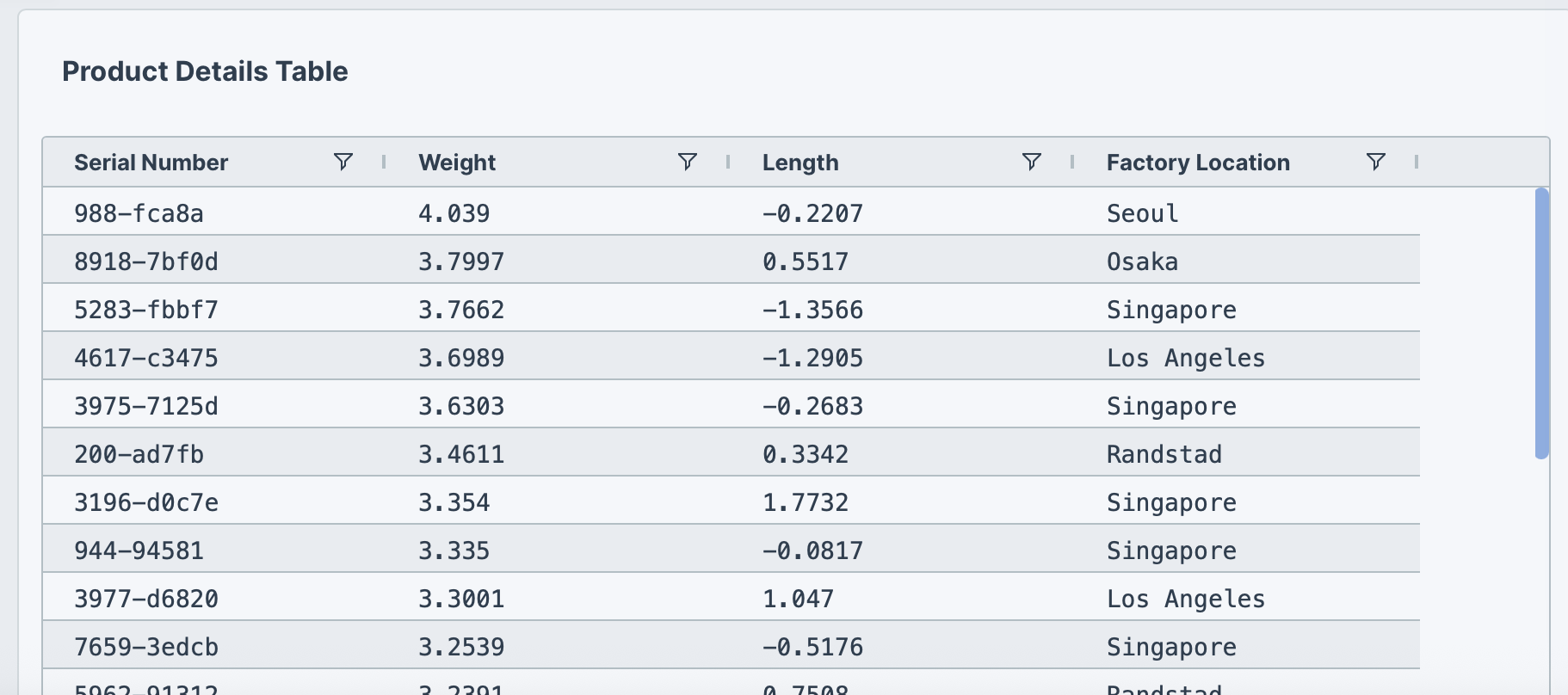
The following example uses this prompt structure with the built-in Plotly Studio dataset:
Product details table

Chart:
- Type: Table
- Columns: Serial number, Weight, Length, Factory location

Data:
- Sort by weight descending
Pagination
Use pagination to customize the number of records to show per page.
<Table Title>

Chart:
- Type: Table
- Columns: <Column names>

Data:
- <Data filtering and sorting>

Options:
- Add pagination with <number> rows per page
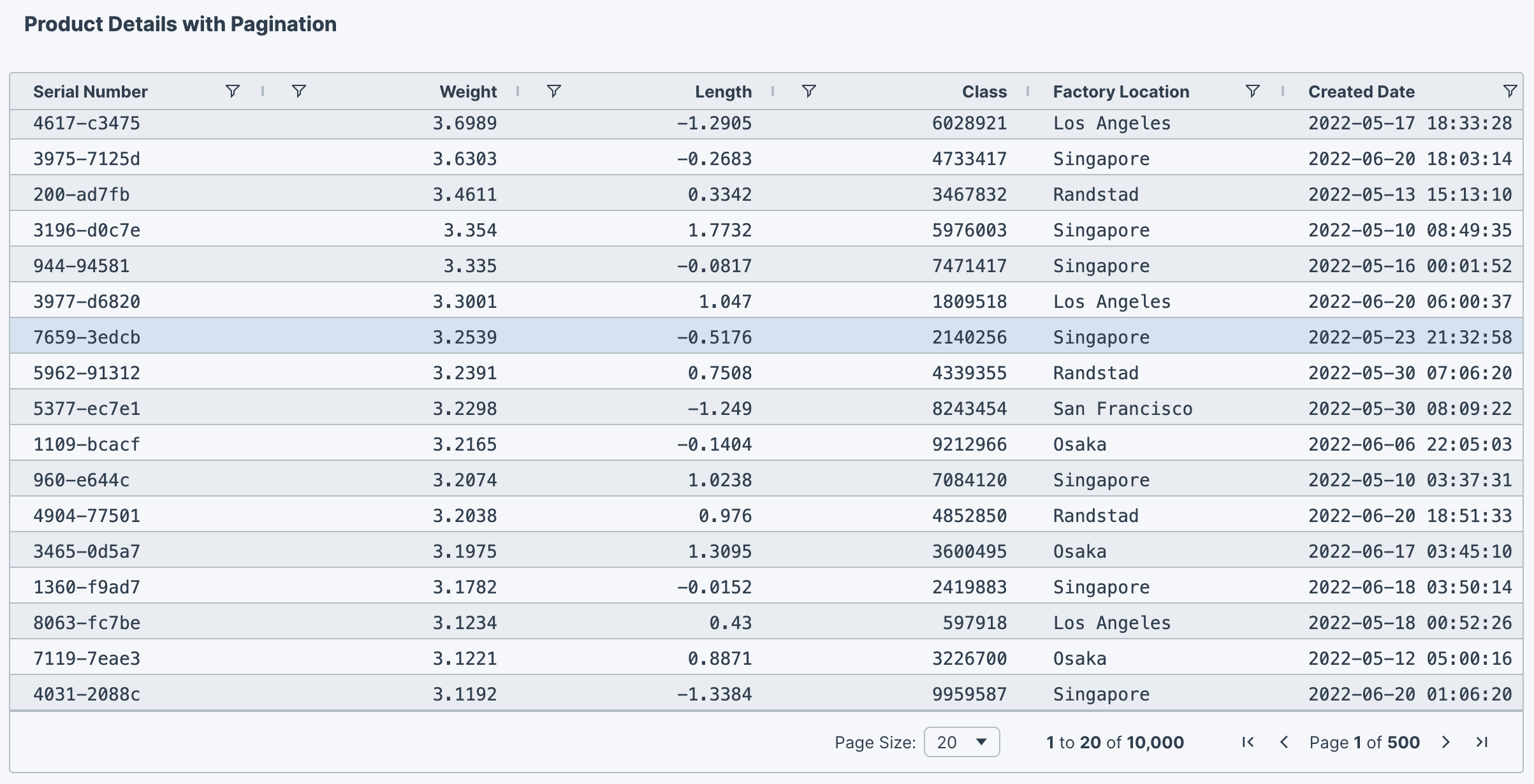
The following example uses this prompt structure with the built-in Plotly Studio dataset:
Product details with pagination

Chart:
- Type: Table
- Columns: Serial number, Weight, Length, Class, Factory location, Created date

Data:
- Sort by weight descending

Options:
- Add pagination with 20 rows per page
Column alignment
Columns can be right-aligned, center-aligned, or left-aligned.
<Table Title>

Chart:
- Type: Table
- Columns: <Column names>

Data:
- <Data filtering and sorting>

Options:
- <Alignment>-align <column names> columns
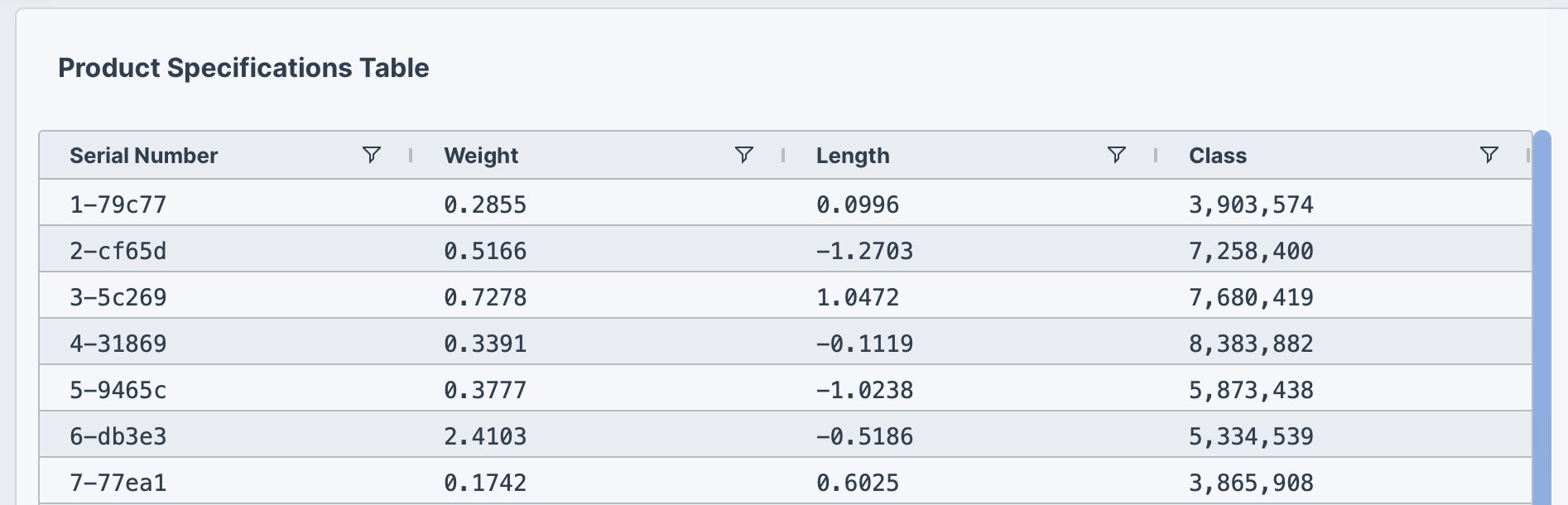
The following example uses this prompt structure with the built-in Plotly Studio dataset:
Product table with column alignment

Chart:
- Type: Table
- Columns: Serial number, Weight, Length, Class

Data:
- Show top 20 products

Options:
- Left-align all columns
Column pinning
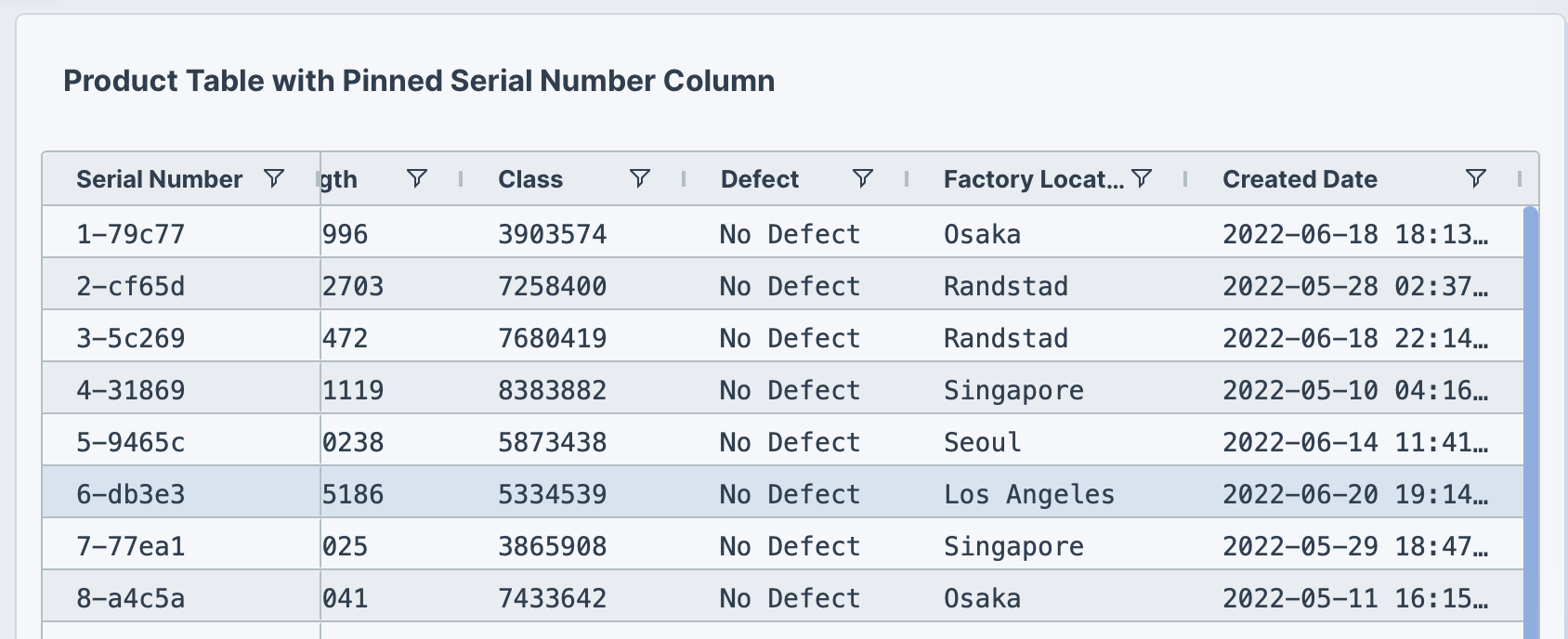
Pinning columns (sometimes referred to as freezing columns) keeps them visible while scrolling the table horizontally. Pinned columns remain fixed as you scroll, allowing you to keep important reference information like IDs or names in view.
<Table Title>

Chart:
- Type: Table
- Columns: <Column names>

Data:
- <Data filtering and sorting>

Options:
- Pin <column name> column to the <left/right>
The following example uses this prompt structure with the built-in Plotly Studio dataset:
Product table with pinned column

Chart:
- Type: Table
- Columns: Serial number, Weight, Length, Class, Defect, Factory location, Created date

Data:
- Show top 20 products

Options:
- Pin Serial number column to the left
Formatting values
Format how values are displayed without changing the underlying data. Some examples of formatting data include adding currency symbols, specifying the number of decimal places, and adding a percentage sign.
<Table Title>

Chart:
- Type: Table
- Columns: <Column names>

Data:
- <Data filtering and sorting>

Options:
- Format <column name> with <number> decimal places
- Format <column name> as currency
- Format <column name> as percentage
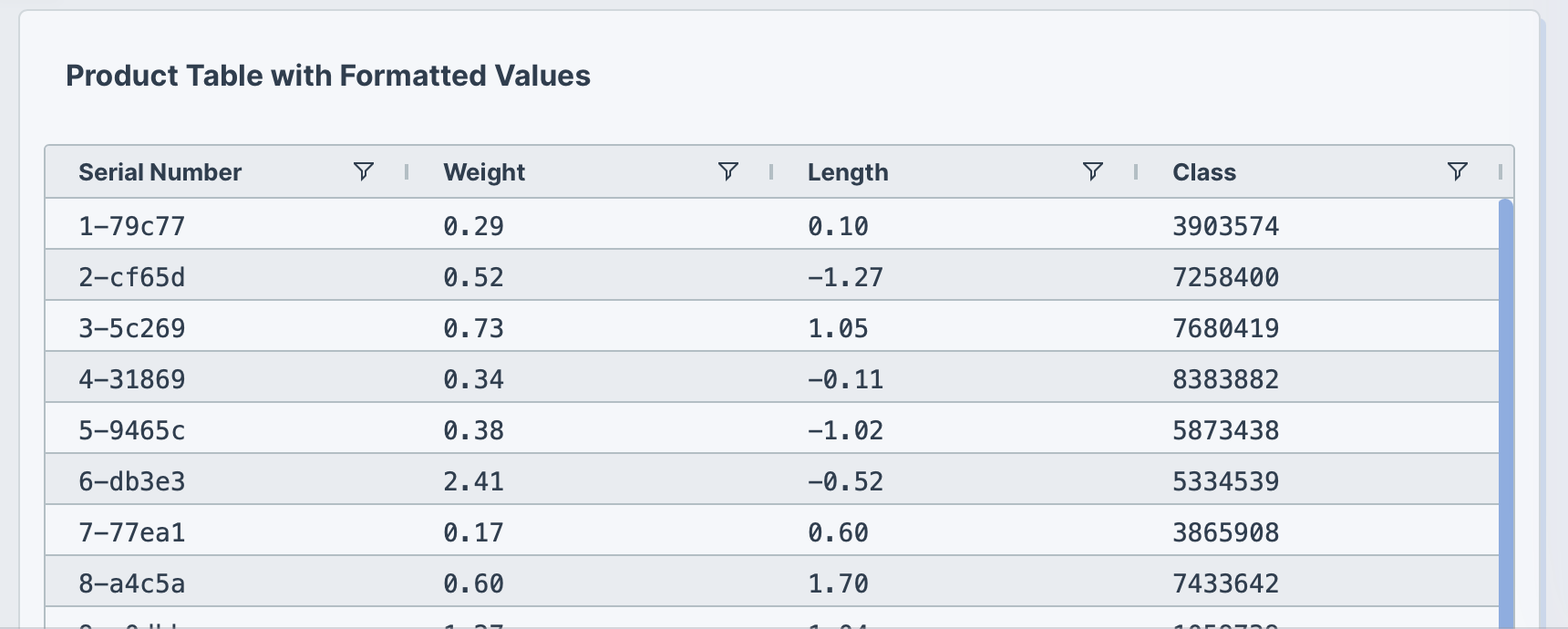
The following example formats numeric columns with specific decimal precision:
Product table with formatted values

Chart:
- Type: Table
- Columns: Serial number, Weight, Length, Class

Data:
- Show top 20 products

Options:
- Format Weight with 2 decimal places
- Format Length with 2 decimal places
Date formatting
You can display date and time values in different formats by specifying a format in your prompt. For example, "Month Day, Year".
<Table Title>

Chart:
- Type: Table
- Columns: <Column names>

Data:
- <Data filtering and sorting>

Options:
- Format <date column> as "<date format>"
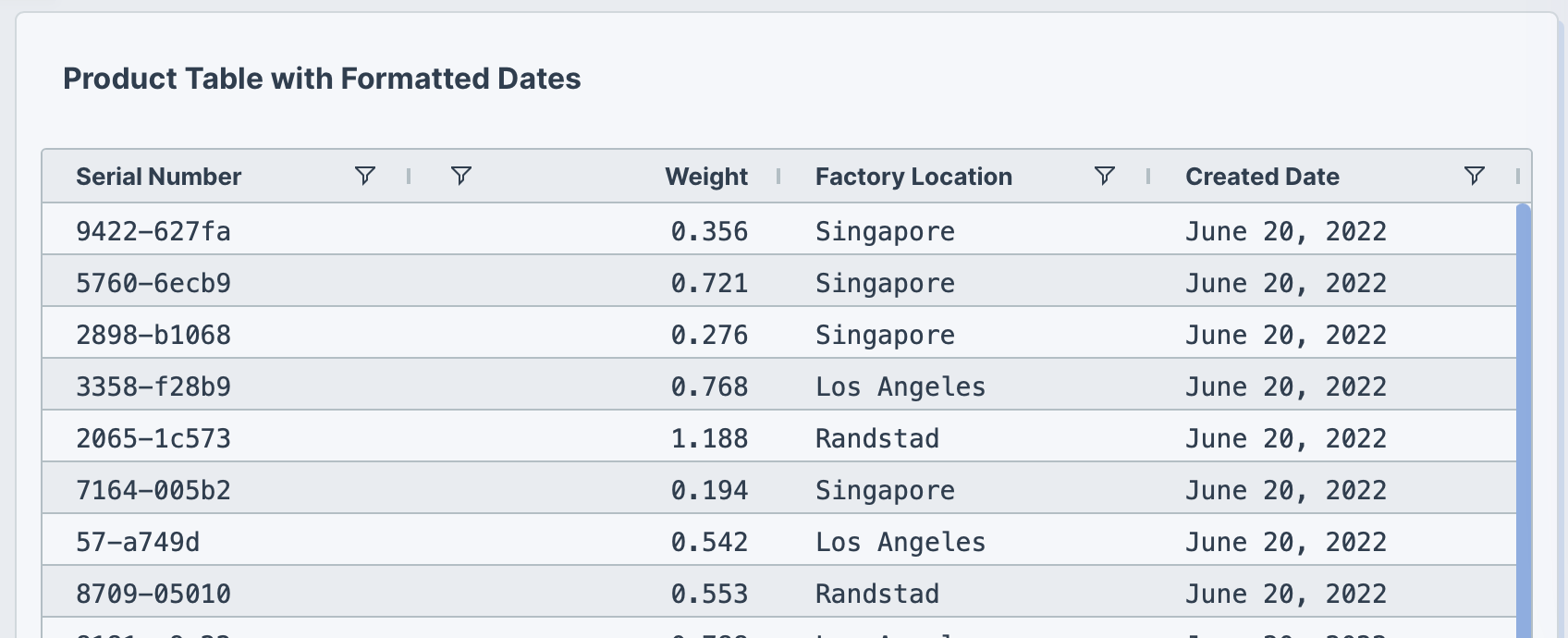
The following example formats the Created date column with a readable date format:
Product table with formatted dates

Chart:
- Type: Table
- Columns: Serial number, Weight, Factory location, Created date

Data:
- Show top 20 products
- Sort by Created date descending

Options:
- Format Created date as "Month Day, Year" (e.g., November 19, 2024)
Checkboxes
Display boolean data ("True"/"False") as checkboxes instead of text.
<Table Title>

Chart:
- Type: Table
- Columns: <Column names>

Data:
- <Data filtering and sorting>

Options:
- Display <column name> column as checkboxes (checked for <condition>, unchecked for <condition>)
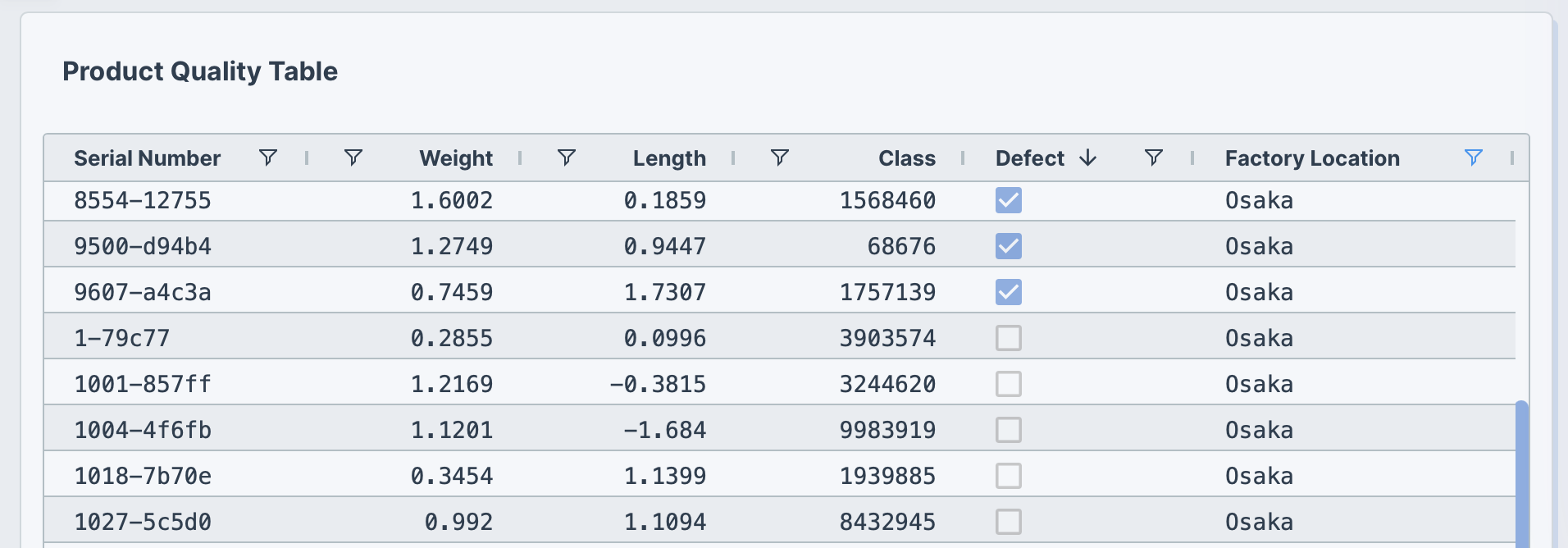
The following example uses this prompt structure with the built-in Plotly Studio dataset:
Product quality table

Chart:
- Type: Table
- Columns: Serial number, Weight, Length, Class, Defect, Factory location

Data:
- Sort by serial number

Options:
- Display Defect column as checkboxes (checked for defects, unchecked for no defects)
Tooltips
Add tooltips that are displayed when hovering over cells to provide additional context or explain what the data represents.
<Table Title>

Chart:
- Type: Table
- Columns: <Column names>

Data:
- <Data filtering and sorting>

Options:
- Add tooltips to <column names> showing "<custom tooltip text>"
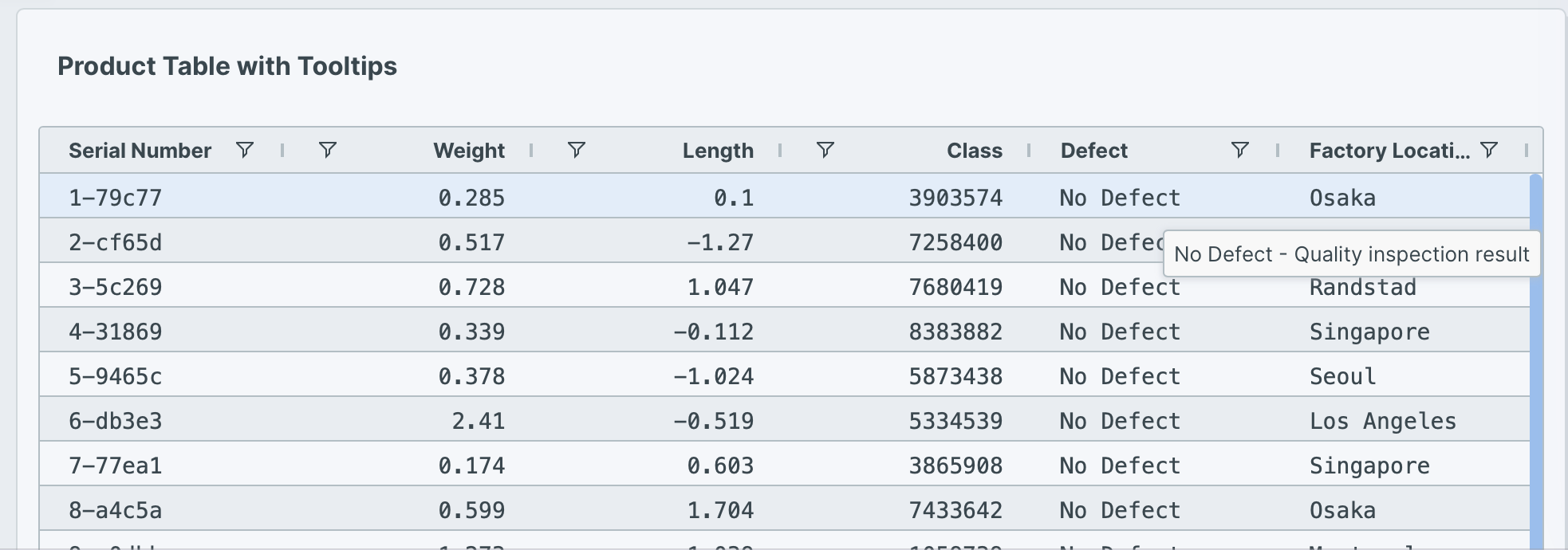
The following example uses this prompt structure with the built-in Plotly Studio dataset:
Product table with tooltips

Chart:
- Type: Table
- Columns: Serial number, Weight, Length, Class, Defect, Factory location

Data:
- Show top 20 products

Options:
- Add tooltips to all columns that show the full cell value on hover
- Add tooltip to Weight column showing "Product weight in kilograms"
- Add tooltip to Defect column showing "Quality inspection result"
Aggregation
Group rows together and calculate summary statistics like totals, counts, averages, minimum, or maximum values. Aggregation helps you analyze patterns and trends across categories in your data.
<Table Title>

Chart:
- Type: Table
- Columns: <Grouping column>, <Aggregated column names>

Data:
- Group by <column name>
- <Aggregation type> (e.g., Count, Average, Sum, Min, Max)
- Sort by <column> <direction>
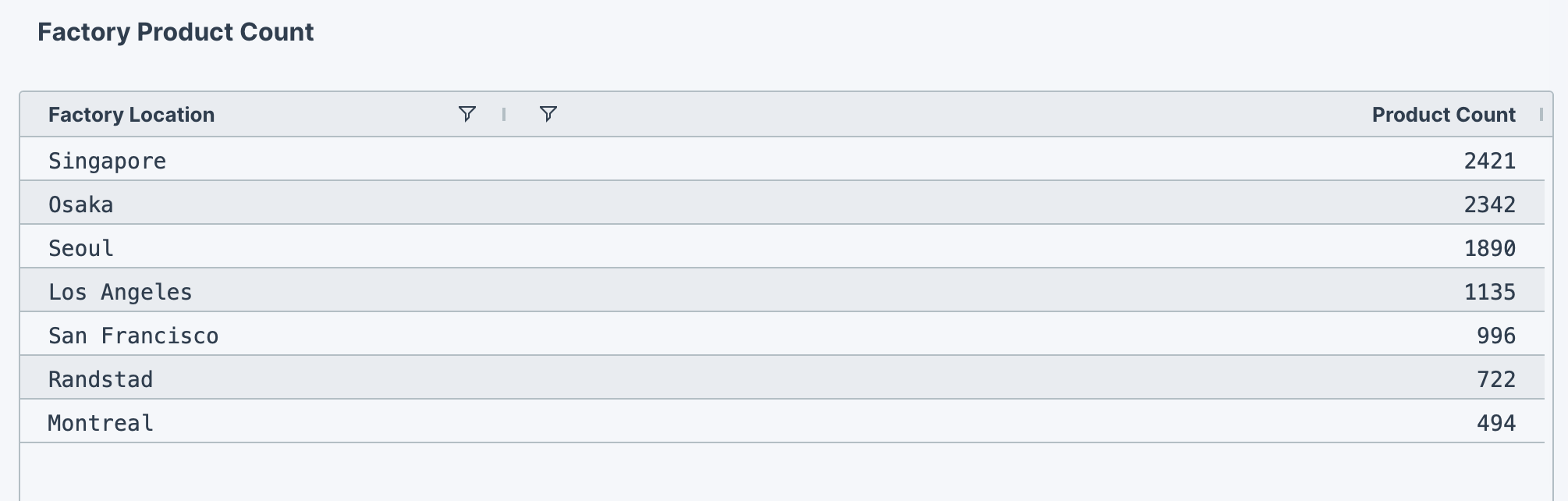
The following example uses this prompt structure with the factory_location column from the built-in Plotly Studio dataset:
Factory Product Count

Chart:
- Type: Table
- Columns: Factory location, Product count

Data:
- Group by factory location
- Count products per factory
- Sort by count descending
Examples of other aggregations
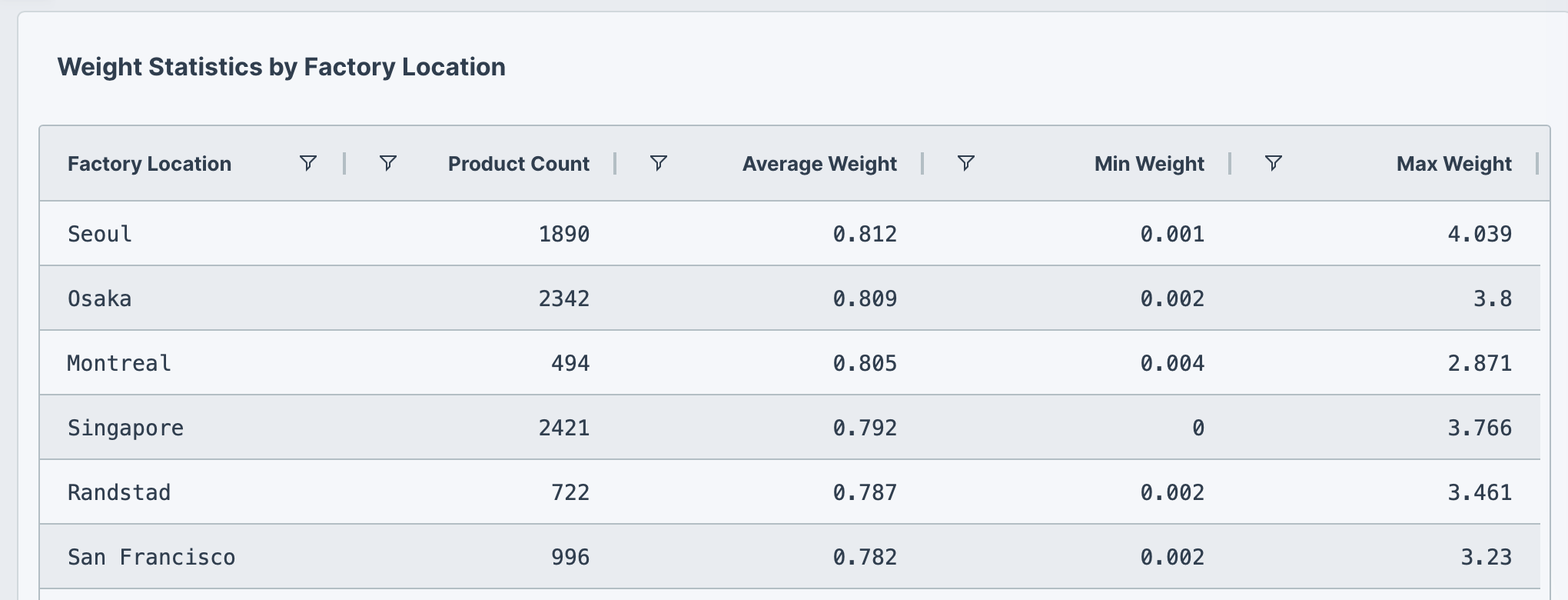
The following prompt example calculates multiple statistics (count, average, min, max) using the built-in Plotly Studio dataset:
Show weight statistics by factory location

Chart:
- Type: Table
- Columns: Factory location, Product count, Average weight, Min weight, Max weight

Data:
- Group by factory location
- Calculate count, average, min, and max for weight
- Sort by average weight descending
Conditional formatting
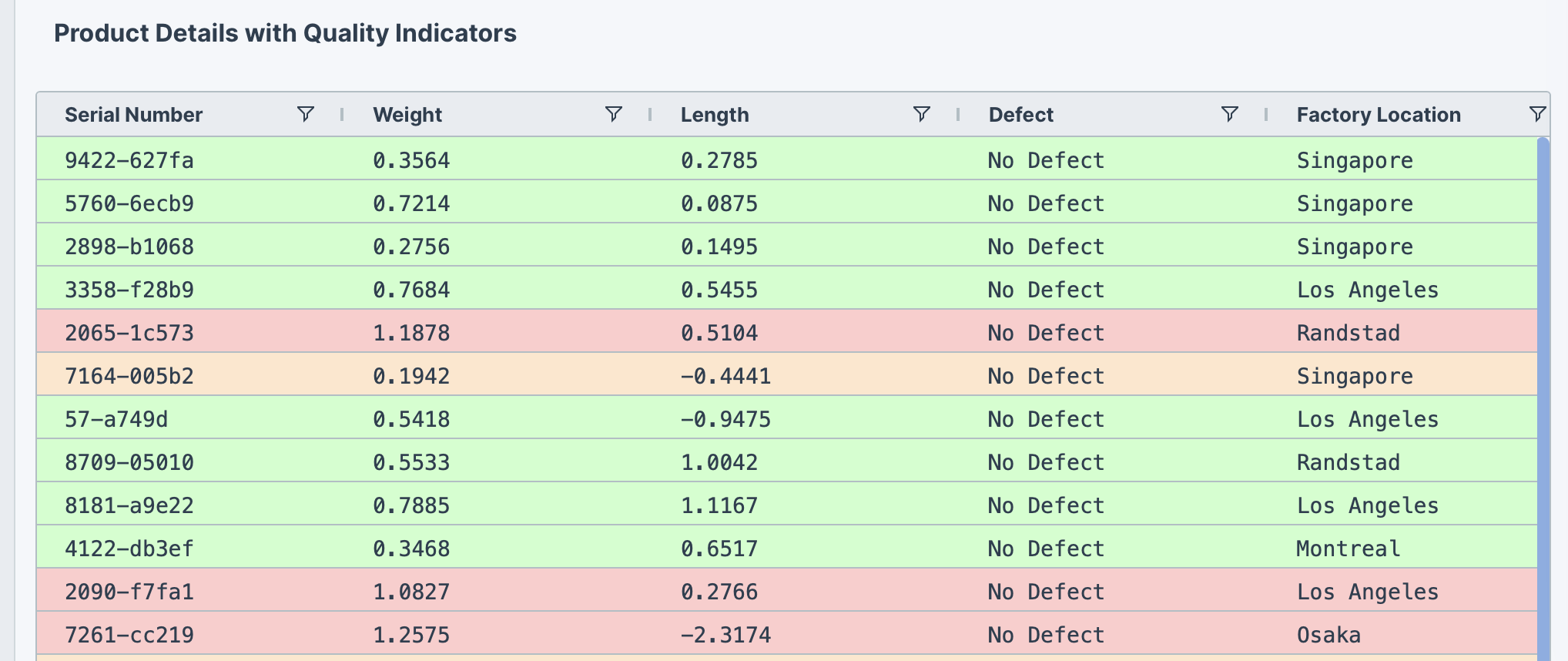
Apply styles to rows based on values in columns. For example, use color-coding to highlight rows that meet certain thresholds or criteria. This can make it easier to see patterns, outliers, and important rows at a glance.
<Table Title>

Chart:
- Type: Table
- Columns: <Column names>

Data:
- <Data filtering and sorting>

Options:
- Color rows where <column> <condition> as <color> (<description>)
The following example uses this prompt structure with the built-in Plotly Studio dataset:
Product quality monitoring table

Chart:
- Type: Table
- Columns: Serial number, Weight, Length, Defect, Factory location, Created date

Data:
- Sort by created date descending
- Show top 100 products

Options:
- Color rows where weight > 0.8 as red
- Color rows where weight < 0.2 as orange
- Color rows where defect != "No Defect" as yellow
- Color rows in normal range (0.2-0.8) as green
HTML tables
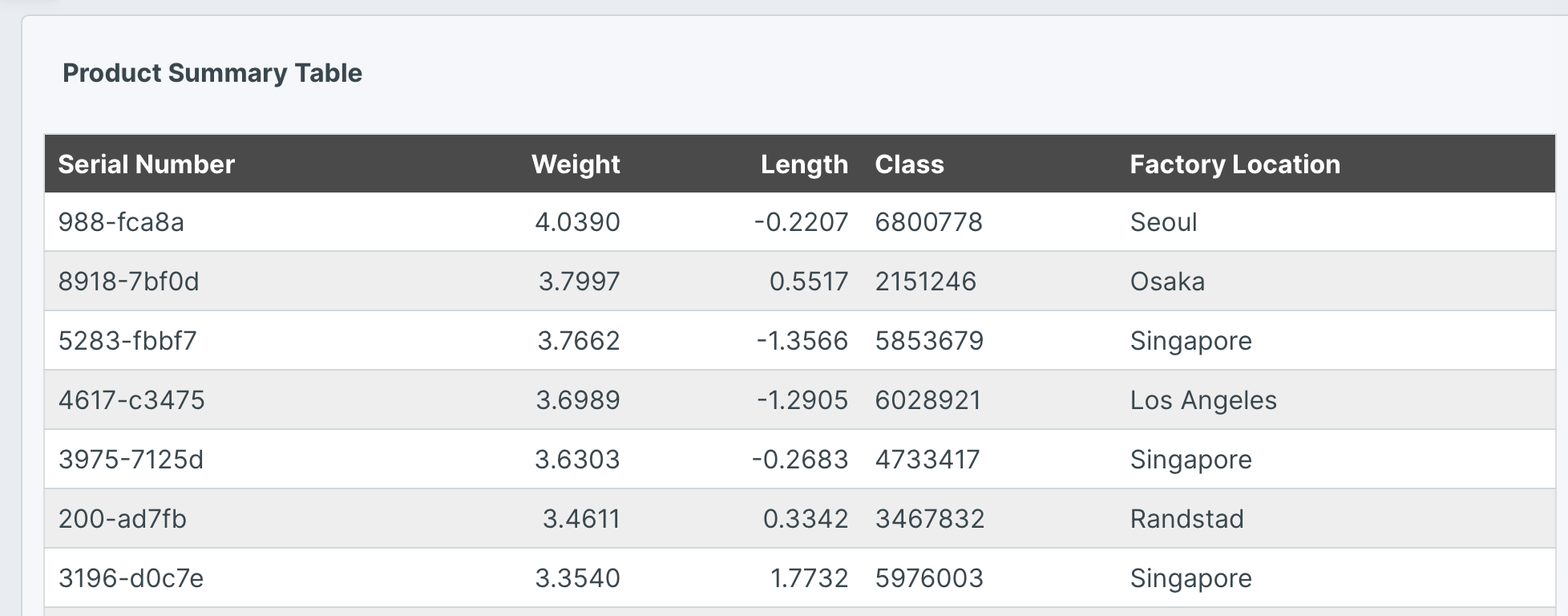
The earlier examples on this page show tables using Dash AG Grid, which provides out-of-the-box functionality like sorting and pagination. You can also ask Plotly Studio for an HTML table when you want more control over the table's styling.
<Table Title>

Chart:
- Type: HTML Table
- Columns: <Column names>

Data:
- <Data filtering and sorting>

Options:
- <Custom styling options>
The following example uses this prompt structure with the built-in Plotly Studio dataset:
Product summary HTML table

Chart:
- Type: HTML Table
- Columns: Serial number, Weight, Length, Class, Factory location

Data:
- Show top 20 products
- Sort by weight descending
- Never show more than 200 rows

Options:
- Use alternating row colors (white and #eeeeee light gray)
- Bold column headers with dark gray background (#4a4a4a)
- Add border around entire table
- Right-align Weight and Length columns
- Use minimal cell padding for compact display
Prompt keywords reference
Use these keywords and phrases in your prompts to customize your table.
Chart
Use a Chart: section in your prompt to define the basic structure of your table, including the table type and which columns to display.
For AG Grid tables with built-in features like sorting and pagination:
Chart:
- Type: Table
- Columns: Serial number, Weight, Length, Factory location
For HTML tables with maximum styling customization:
Chart:
- Type: HTML Table
- Columns: Serial number, Weight, Length, Factory location
Here are some keyword suggestions to use in this section:
| Keyword/Phrase | Description | Example |
|---|---|---|
| Type | Specify the table type as Table or HTML Table | Type: Table or Type: HTML Table |
| Columns | The columns to display in the table | Columns: Serial number, Weight, Length, Class |
Data
Use a Data: section in your prompt to specify how to transform, filter, sort, or aggregate your data before displaying it in the table.
Data:
- Sort by weight descending
- Show top 20 products
Here are some keyword suggestions to use in this section:
| Keyword/Phrase | Description | Example |
|---|---|---|
| Sort by | Sort the table by a column in ascending or descending order | Sort by weight descending |
| Show top | Limit the number of rows displayed | Show top 20 products |
| Filter | Filter data to show only specific records | Filter to show only defect = true |
| Group by | Group rows together for aggregation | Group by factory location |
| Aggregation | Calculate summary statistics like count, sum, average, min, or max | Count products per factory |
| Computed field | Create new calculated fields from existing data | Computed field: Shipping days calculated as the difference between Shipped date and Created date in days |
Options
Use an Options: section in your prompt to customize the table's appearance and add interactive features like pagination, formatting, alignment, and conditional styling.
Options:
- Add pagination with 20 rows per page
- Format Weight with 2 decimal places
- Pin Serial number column to the left
Here are some keyword suggestions to use in this section:
| Keyword/Phrase | Description | Example |
|---|---|---|
| Pagination | Add pagination and specify rows per page | Add pagination with 20 rows per page |
| Column alignment | Align columns left, center, or right | Right-align Serial number, Weight and Length columns |
| Pin column | Pin columns to left or right to keep them visible while scrolling | Pin Serial number column to the left |
| Format values | Format numeric values with decimal places, as currency, or as percentages | Format Weight with 2 decimal placesFormat Price as currencyFormat Discount as percentage |
| Format dates | Display date values in specific formats | Format Created date as "Month Day, Year" |
| Display as checkboxes | Show boolean values as checkboxes | Display Defect column as checkboxes |
| Add tooltips | Add hover tooltips to provide additional context | Add tooltip to Weight column showing "Product weight in kilograms" |
| Color rows | Apply conditional formatting to highlight rows based on conditions | Color rows where weight > 0.8 as red |