Teams
Teams organize apps that are published to Plotly Cloud and projects created in Plotly Studio (if signed in with Plotly Cloud). Your role on a team determines your access level for apps published to Plotly Cloud and projects in Plotly Studio, if applicable.
Info
Using Plotly Studio with Dash Enterprise? Collaborating on apps published to Dash Enterprise works differently. See App Co-owners.
When you first log in to Plotly Cloud, you're prompted to create a team. We recommend creating a team representing your organization, even if it has few members to start. You'll be able to centrally manage app and project access for your collaborators as your needs evolve throughout development.
Members of a team have the Creator or Viewer role. The Creator role is suitable for developers, data scientists, or project leads who need control over at least one app. The Viewer role is best for stakeholders, executives, and clients—the audience that will be using your team's published apps. For a detailed permission breakdown of each role, see Permissions by team role.
Your team plan determines how many Creators, Viewers, and concurrent running apps your team can have. For detailed information on team plans, see https://plotly.com/pricing.
Note
If you had an account before February 2026, you automatically belong to a team named <Your name's> team and you have the Creator role. Your team plan corresponds to the plan you previously selected for your user (note that some plan names have changed).
You can be a member of multiple teams. Use the teams switcher in Plotly Cloud or Plotly Studio to switch between them.
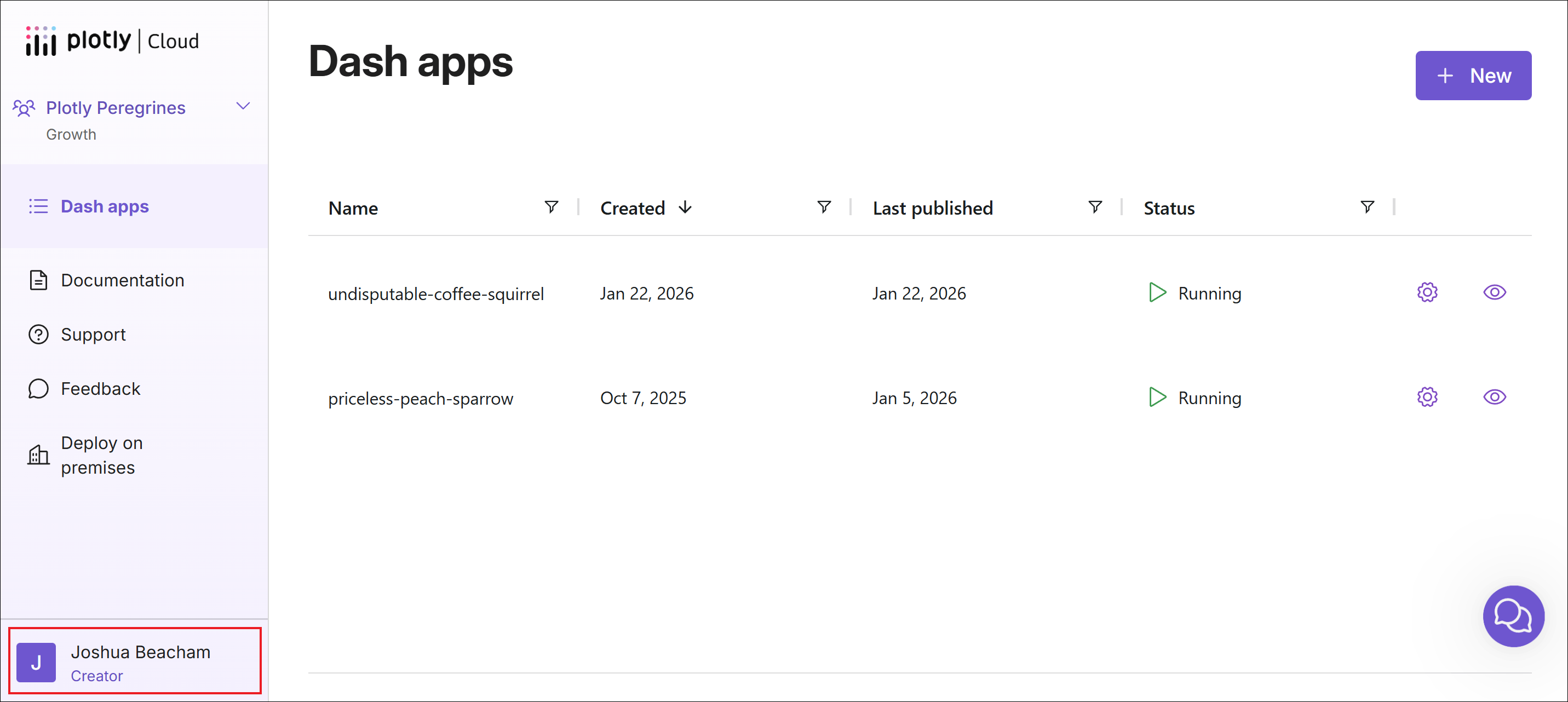
In Plotly Cloud, your role in a team is displayed under your name in the bottom left corner.
Creating a new team
Everyone can create a new team.
To create a new team:
- Select your teams in the top left corner.
- Select Create new team.
- Enter a name for your new team, and then select Create.
Your new team starts on the Free plan. You can upgrade it anytime by going to Team settings > Billing.
Editing the team name
To edit the team name:
- Go to the Team settings.
- In Team details, select Edit
 .
. - Enter the new team name.
- Select Save.
Managing team members
Permissions by team role
Here's what your team role means when working with Plotly Cloud and Plotly Studio.
In Plotly Cloud
| Creator | Viewer | |
|---|---|---|
| View team settings and members | ✓ | ✓ |
| Change the team plan | ✓ | |
| Add more Plotly credits | ✓ | |
| Invite new team members | ✓ | |
| Have edit permission on the team's apps | ✓ (1) | (1) |
| Change other members' roles | ✓ | |
| Change your own role | ✓ (2) | |
| Edit the team name | ✓ | |
| Remove other team members | ✓ | |
| Leave the team | ✓ (3) | ✓ |
| Delete the team | ✓ |
(1) Creators can be given edit or view permissions on apps, while Viewers can only be given view permission. For more information about app-level permissions, see Access Control and Sharing.
(2) Creators can only change their role to Viewer as long as there is at least one other Creator remaining in the team.
(3) You cannot leave the team if you are the only Creator.
In Plotly Studio
In Plotly Studio, only Creators in a team can use that team's Plotly credits. Actions that use Plotly credits include connecting to data via chat, generating an app for the first time, and making prompt-based changes to existing apps.
Inviting new team members
You can invite team members from the Team settings as well as from the app sharing settings.
To invite a new member from the Team settings:
- Go to the Team settings.
- Select Invite member.
- Enter the email address(es) for your invitee(s).
-
Select the team role that the invitees will obtain once added.
Note
Refer to your plan details for information about the number of Creator and Viewer seats that are included in your plan. If you are on the Pro plan or higher, you can purchase additional Creator seats when all the existing seats are filled. By inviting more Creators, you will be immediately charged a prorated amount of the Creator seat cost.
-
Select Invite.
You can invite someone to join your team even if they haven't signed up for Plotly Cloud yet. They'll receive an invitation to Plotly Cloud and, when they sign up, will be added to the team.
Changing member roles
To change a team member's role:
- Go to the Team settings.
- Find the team member whose role you want to change. In the Roles column, select their current role.
- Choose their new role.
Removing team members
Caution
Before removing someone from a team, make sure that they are not the only members on the team with edit permission on any of its apps. If the last team member with edit permission on an app is removed from the team, nobody will be left to manage it.
To remove a member from the team:
- Go to the Team settings.
- Next to the team member that you want to remove, select Remove.
- Select Remove team member to confirm.
Leaving a team
Caution
Before leaving a team, make sure that you are not the only team member with edit permission on any of its apps. If the last team member with edit permission on an app leaves the team, nobody will be left to manage it.
To leave a team:
- Go to your account settings.
-
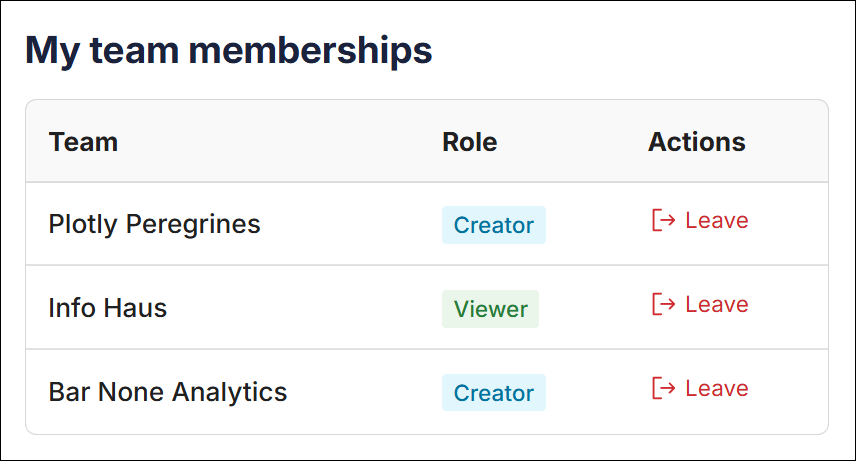
Under Team memberships, find the team that you want to leave. In the Actions column, select Leave.
-
Select Leave team to confirm.
You cannot leave a team if you are the only Creator.
Deleting a team
To delete a team:
- Go to the Team settings.
- Go to the Billing tab.
- Select Delete team.
- Enter the team name.
- Select Delete team to confirm.
You cannot delete a team if there are apps belonging to the team. Delete the apps first (or, if you do not have edit permission on some apps, ask other team members to delete them).