Box Plots
A box plot is a statistical representation of the distribution of a column through its quartiles. The ends of the box represent the lower and upper quartiles, while the median (second quartile) is marked by a line inside the box. You can create grouped box plots to compare distributions across categories, and apply styles and customizations like colors, orientations, and point display.
Writing prompts for Plotly Studio
You can create charts in Plotly Studio using natural language in different ways:
Ask a question - great for exploring your data:
Which factory produces the heaviest products?
Use a quick one-line prompt - concise and conversational:
Compare average weight by factory
Write structured detailed prompts - precise control and consistency:
Average Weight by Factory

Chart:
- Type: bar
- X: Factory location
- Y: Average weight

Data:
- Aggregation: average of weight by Factory location
Structured detailed prompts give you more control over chart type, data mappings, aggregations, and styling. Most examples on this page use this format.
Basic box plot example
Here's an example of how to create a basic box plot showing the distribution of a single column.
The prompt specifies the chart type and the columns to visualize:
<Chart Title>

Chart:
- Type: box
- X: <Column Name>
- Y: <Column Name>
The following example uses this prompt structure with the factory_location and weight columns from the built-in Plotly Studio dataset:
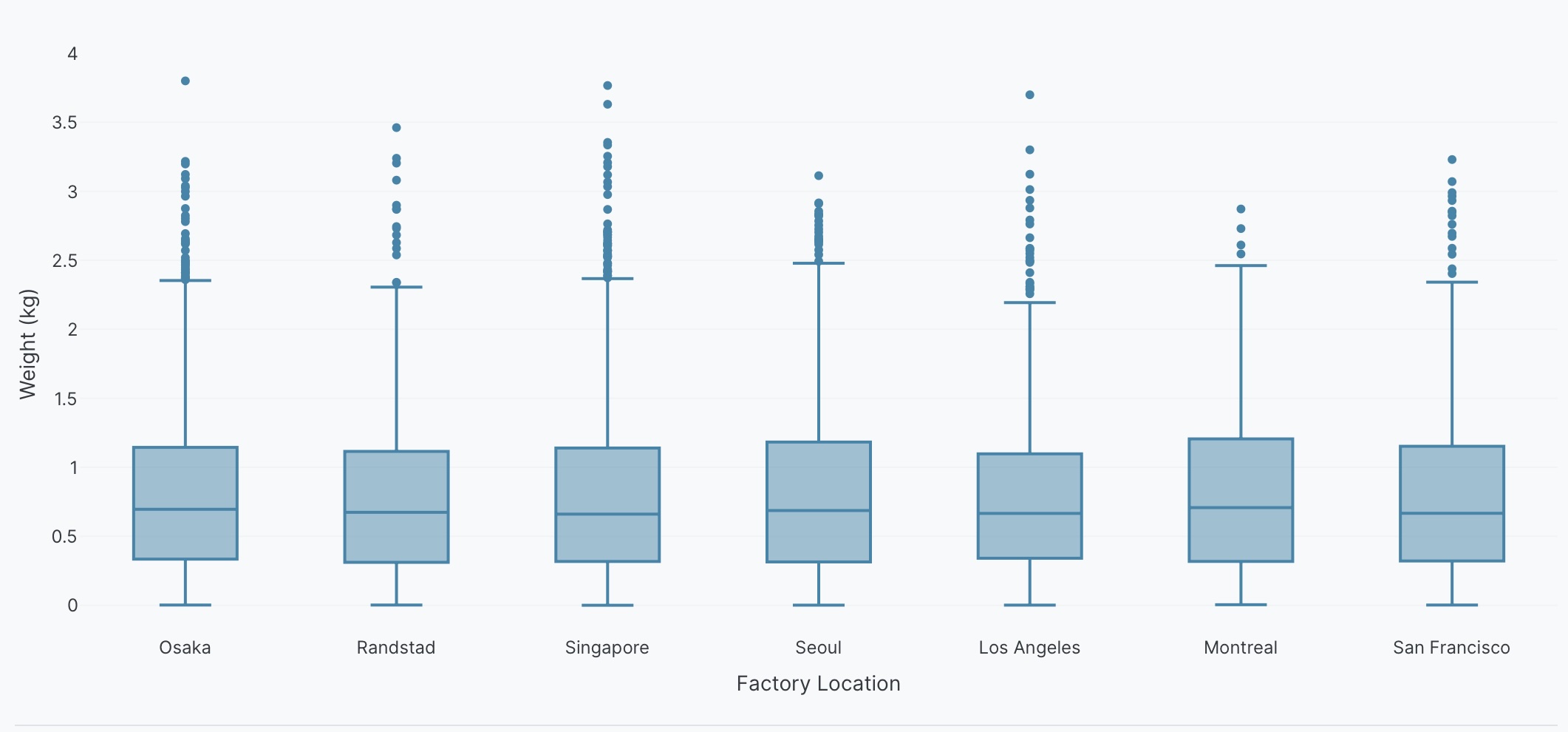
Weight Distribution by Factory Location

Chart:
- Type: box
- X: Factory location
- Y: Weight
Grouped box plots
Compare distributions across multiple categories by adding color to create side-by-side box plots.
<Chart Title>

Chart:
- Type: box
- X: <Column Name>
- Y: <Column Name>
- Color: <second_category>
The following example uses this prompt structure with the factory_location, weight, and defect columns from the built-in Plotly Studio dataset:
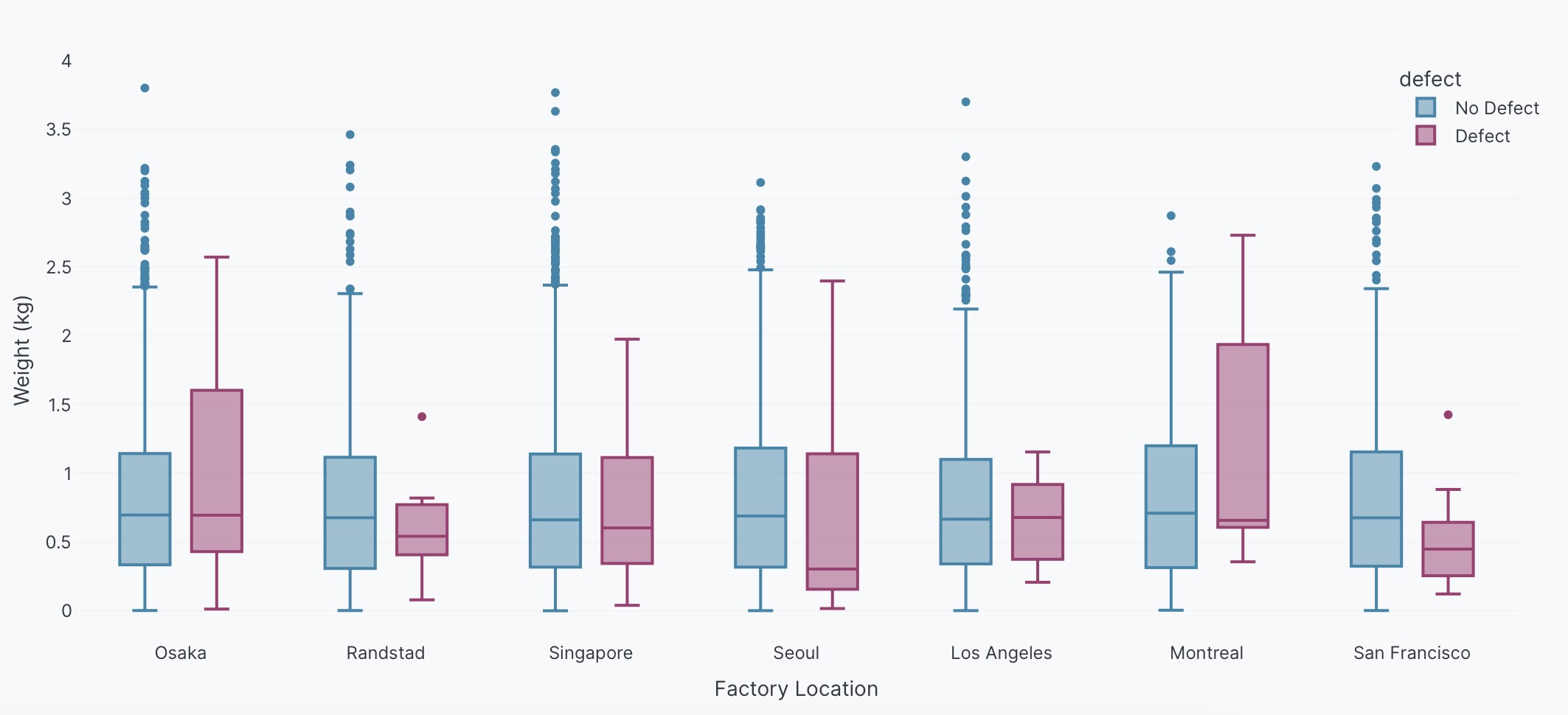
Weight Distribution by Factory and Defect Status

Chart:
- Type: box
- X: Factory location
- Y: Weight
- Color: Defect
Display the underlying data
Display underlying data points with the box plot to show all points, outliers only, or hide them completely.
<Chart Title>

Chart:
- Type: box
- X: <Column Name>
- Y: <Column Name>

Chart styles:
- Show all points
The following example uses this prompt structure with the factory_location and weight columns from the built-in Plotly Studio dataset:
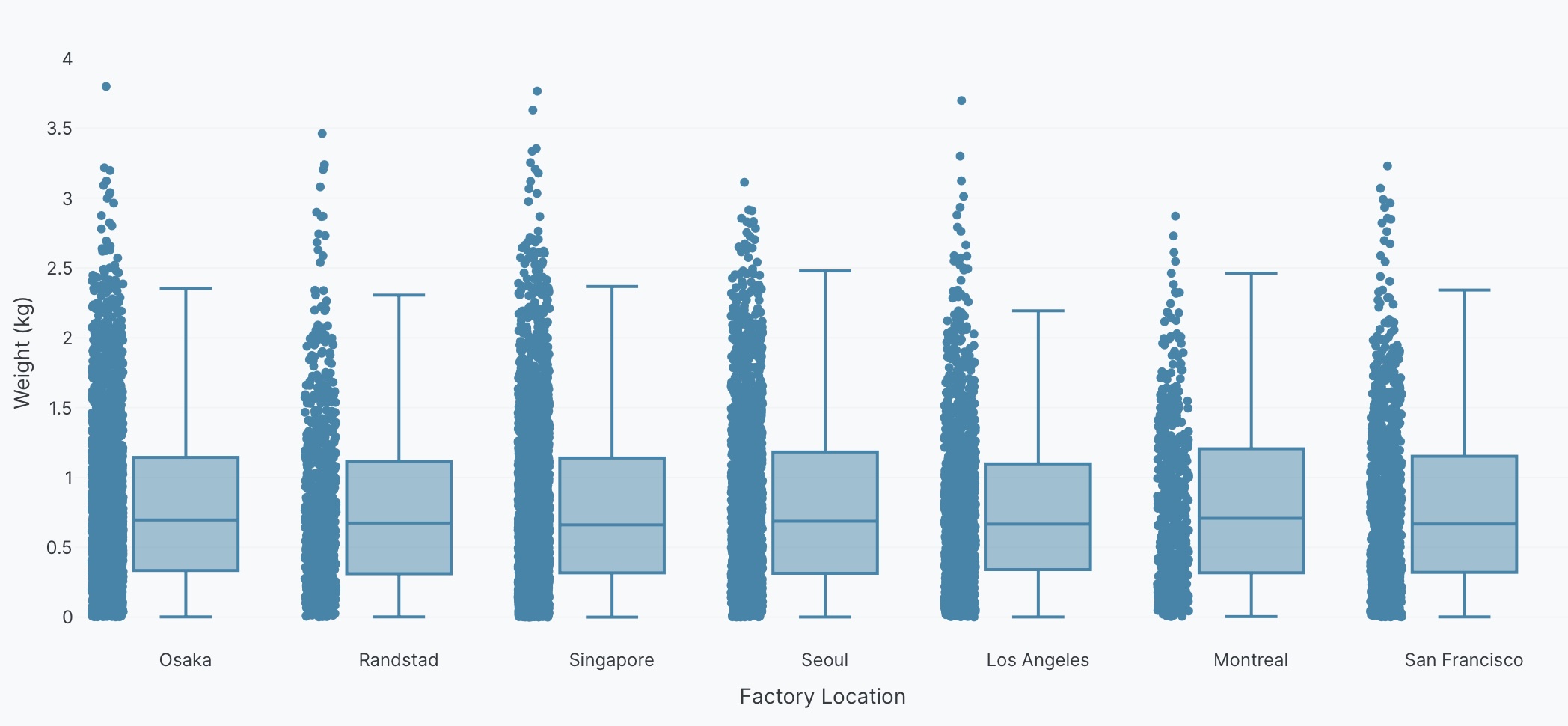
Weight Distribution by Factory Location

Chart:
- Type: box
- X: Factory location
- Y: Weight

Chart styles:
- Show all points
Interactive controls
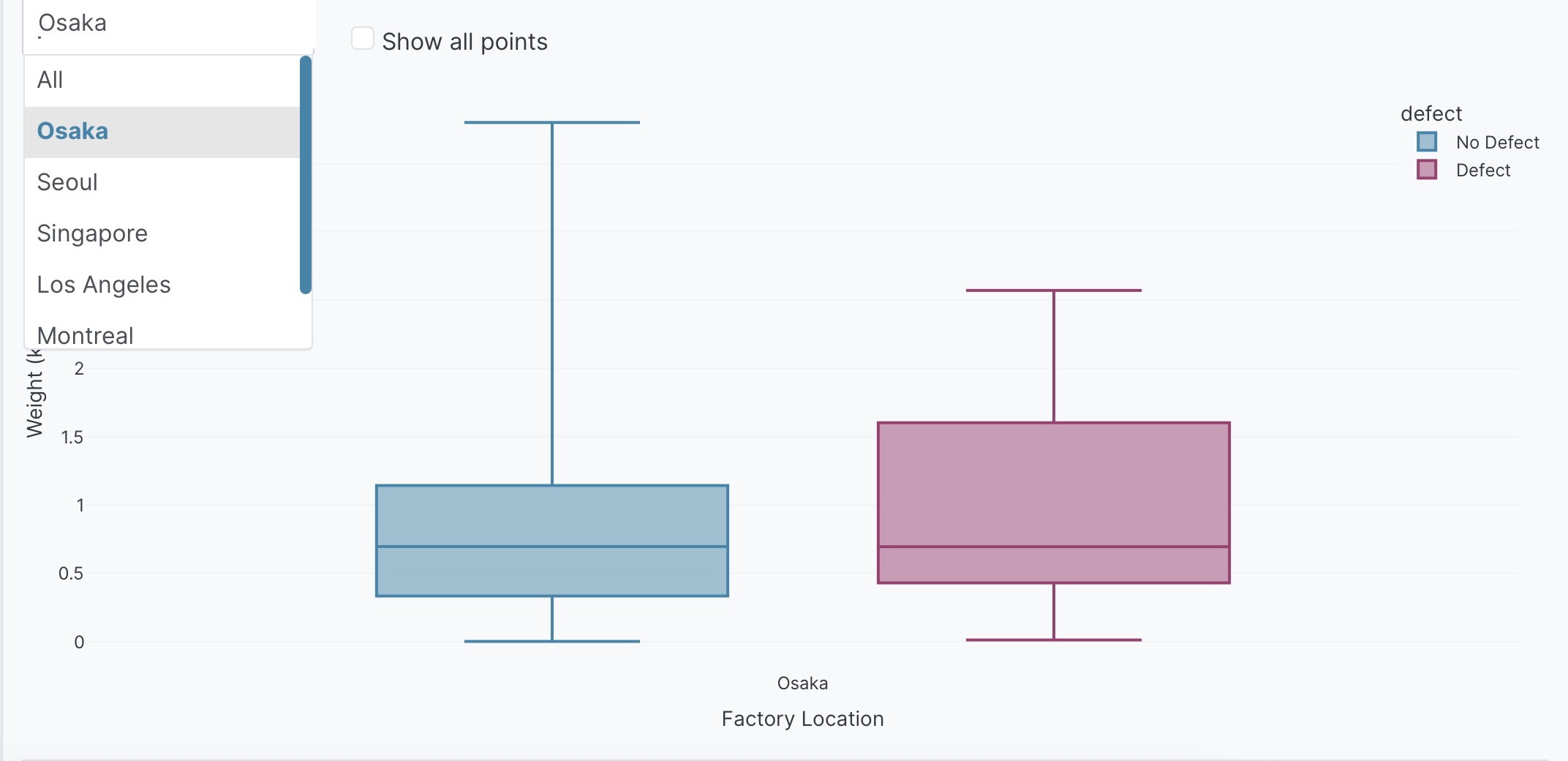
Add dropdowns and other controls to make your box plots interactive. Controls let users filter and explore the data dynamically.
Weight Distribution by Factory and Defect Status

Chart:
- Type: box
- X: Factory location
- Y: Weight
- Color: Defect

Options:
- Dropdown to select factory (All, Osaka, Seoul, Singapore, Los Angeles, Montreal, Randstad) - Default All
- Checkbox to toggle point display - Default hide points
Prompt keywords reference
Use these keywords and phrases in your prompts to customize your box plot.
Chart
Use a Chart: section in your prompt to define the basic structure of your box plot, including the chart type and how columns map to visual properties.
Chart:
- Type: box
- X: Factory location
- Y: Weight
- Color: Defect
- Facet columns: Factory location
Here are some keyword suggestions to use in this section:
| Keyword/Phrase | Description | Example |
|---|---|---|
| Type | Specify the chart type as box | Type: box |
| X | The categorical variable for grouping | X: Factory location |
| Y | The numeric variable to show distribution for | Y: Weight |
| Color | Color box plots by different groups | Color: Defect |
| Facet columns | Create multiple subplots side-by-side for each category | Facet columns: Defect |
| Facet rows | Create multiple plots stacked vertically by group | Facet rows: Factory location |
Data
Use a Data: section in your prompt to specify how to transform, filter, or aggregate your data before visualization.
Data:
- Aggregation: average of weight by Factory location
- Computed field: Weight category based on weight ranges
Here are some keyword suggestions to use in this section:
| Keyword/Phrase | Description | Example |
|---|---|---|
| Aggregation | Specify how to aggregate data | Aggregation: average of weight by Factory location |
| Computed field | Create new calculated fields from existing data | Computed field: Weight category based on weight ranges |
| Filter | Filter data to show only specific records | Filter to show only defect = true |
Options
Use an Options: section in your prompt to add interactive controls that allow users to dynamically filter, transform, and visualize data without regenerating the chart.
Options:
- Dropdown to select factory (All, Osaka, Seoul, Singapore) - Default All
- Checkbox to toggle point display - Default hide points
Here are some keyword suggestions to use with this section. See Chart Controls for a complete list of control types and additional examples.
| Keyword/Phrase | Description | Example |
|---|---|---|
| Dropdown | Add a dropdown menu to filter by categories | Dropdown to select factory (All, Osaka, Seoul) - Default All |
| Checkbox | Add a checkbox to toggle options | Checkbox to toggle point display - Default hide points |
Chart styles
Use a Chart styles: section in your prompt to control the visual appearance and formatting of your box plot.
Chart styles:
- Use custom colors: #FF5733, #33FF57
- Make the chart horizontal
- Show all points
Here are some keyword suggestions to use in this section:
| Keyword/Phrase | Description | Example |
|---|---|---|
| Custom colors | Specify exact colors for box plots | Use custom colors: #FF5733, #33FF57 |
| Horizontal orientation | Flip box plots to horizontal orientation | Make the chart horizontal |
| Show points | Display individual data points on the box plot | Show all points |
| Show outliers only | Display only outlier points | Show outliers only |
| Point position | Control how points are displayed (jittered, overlaid) | Show points with jitter |
| Box mode | Set how grouped boxes are displayed (group, overlay) | Use overlay mode |
| Notched boxes | Add notches to show confidence interval around median | Show notched boxes |
| Quartile method | Specify quartile calculation method | Use inclusive quartile method |
| Hover text | What to show when hovering over boxes | Show Factory location on hover |
| Axis labels | Rename axis labels to be more readable | Label x-axis as "Factory"Label y-axis as "Product Weight (kg)" |
| Axis range | Set minimum and maximum values for axes | Set y-axis range from 0 to 3 |
| Legend | Control legend display and position | Show legend at top right |