Treemaps
Treemap charts visualize hierarchical data using nested rectangles. Treemaps are useful for showing hierarchical data and part-to-whole relationships, with rectangle sizes proportional to their values, helping you see both the overall hierarchy and individual proportions. You can show multiple levels of hierarchy, use color to encode additional dimensions, and apply styles and customizations like custom colors and text labels.
Writing prompts for Plotly Studio
You can create charts in Plotly Studio using natural language in different ways:
Ask a question - great for exploring your data:
Which factory produces the heaviest products?
Use a quick one-line prompt - concise and conversational:
Compare average weight by factory
Write structured detailed prompts - precise control and consistency:
Average Weight by Factory

Chart:
- Type: bar
- X: Factory location
- Y: Average weight

Data:
- Aggregation: average of weight by Factory location
Structured detailed prompts give you more control over chart type, data mappings, aggregations, and styling. Most examples on this page use this format.
Basic treemap example
Example of showing hierarchical data with nested categories.
<Chart Title>

Chart:
- Type: treemap
- Path: <parent_category>, <child_category>
- Values: <Column Name>
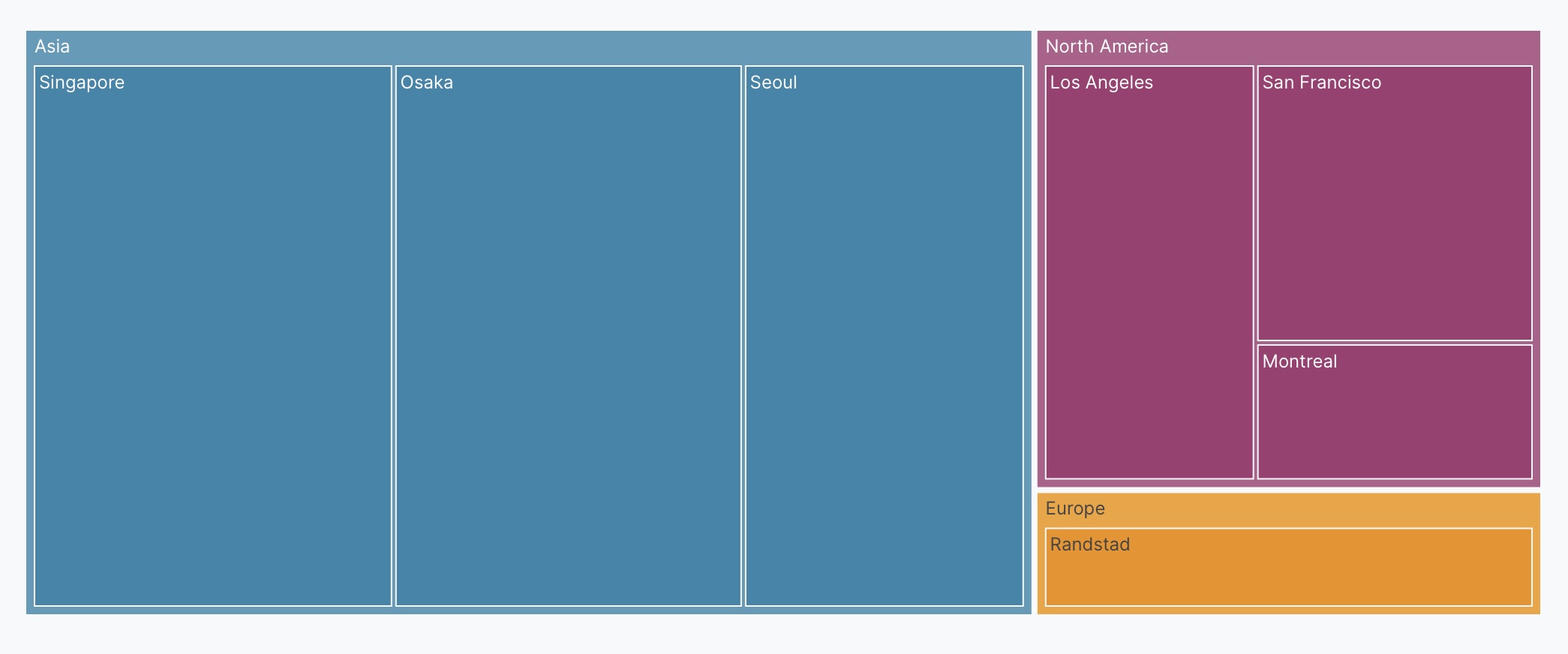
The following example uses this prompt structure with the region and factory_location columns from the built-in Plotly Studio dataset, with a computed field to group factories by region and a count aggregation:
Products by Region and Factory Location

Chart:
- Type: treemap
- Path: Region, Factory location
- Values: Count of products

Data:
- Computed field: Region based on Factory location (Montreal/Los Angeles/San Francisco → North America; Seoul/Singapore/Osaka → Asia; Randstad → Europe)
- Aggregation: count by Region and Factory location
Text on rectangles
Control what text appears on each rectangle (labels, values, percentages, or combinations).
<Chart Title>

Chart:
- Type: treemap
- Path: <hierarchy_levels>
- Values: <Column Name>

Chart styles:
- Show <text_type> on rectangles
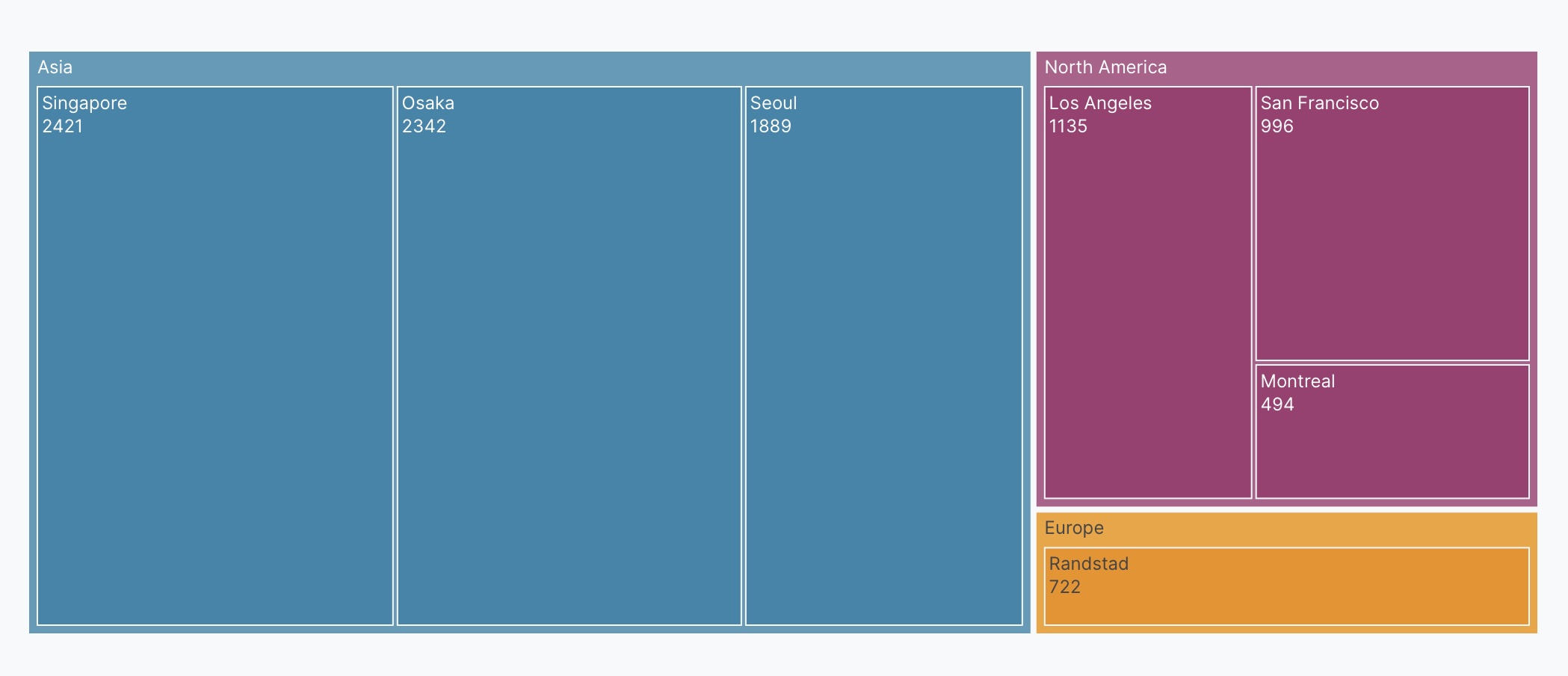
The following example uses this prompt structure with the region and factory_location columns from the built-in Plotly Studio dataset, with a computed field for region and a count aggregation:
Products by Region and Factory Location

Chart:
- Type: treemap
- Path: Region, Factory location
- Values: Count of products

Data:
- Computed field: Region based on Factory location (Montreal/Los Angeles/San Francisco → North America; Seoul/Singapore/Osaka → Asia; Randstad → Europe)
- Aggregation: count by Region and Factory location

Chart styles:
- Show labels and values on rectangles
Interactive controls
Add dropdowns and other controls to make your treemaps interactive. Controls let users filter and explore the data dynamically.
Products by Region and Factory Location

Chart:
- Type: treemap
- Path: Region, Factory location
- Values: Count of products

Data:
- Computed field: Region based on Factory location (Montreal/Los Angeles/San Francisco → North America; Seoul/Singapore/Osaka → Asia; Randstad → Europe)
- Aggregation: count by Region and Factory location

Options:
- Dropdown to select region (All, North America, Asia, Europe) - Default All
- Checkbox to toggle value labels - Default show labels
Prompt keywords reference
Use these keywords and phrases in your prompts to customize your treemap.
Chart
Use a Chart: section in your prompt to define the basic structure of your treemap, including the chart type and how columns map to visual properties.
Chart:
- Type: treemap
- Path: Region, Factory location
- Values: Count of products
- Color: Defect
Here are some keyword suggestions to use in this section:
| Keyword/Phrase | Description | Example |
|---|---|---|
| Type | Specify the chart type as treemap | Type: treemap |
| Path | The hierarchical levels to display (parent to child) | Path: Region, Factory location |
| Values | The column to use for rectangle sizes | Values: Count of products |
| Color | Color rectangles by category or value | Color: Defect |
Data
Use a Data: section in your prompt to specify how to transform, filter, or aggregate your data before visualization.
Data:
- Aggregation: count by Region and Factory location
- Computed field: Region based on Factory location
Here are some keyword suggestions to use in this section:
| Keyword/Phrase | Description | Example |
|---|---|---|
| Aggregation | Specify how to aggregate data | Aggregation: count by Region and Factory location |
| Computed field | Create new calculated fields from existing data | Computed field: Region based on Factory location |
| Filter | Filter data to show only specific records | Filter to show only defect = true |
Options
Use an Options: section in your prompt to add interactive controls that allow users to dynamically filter, transform, and visualize data without regenerating the chart.
Options:
- Dropdown to select region (All, North America, Asia, Europe) - Default All
- Checkbox to toggle value labels - Default show labels
Here are some keyword suggestions to use with this section. See Chart Controls for a complete list of control types and additional examples.
| Keyword/Phrase | Description | Example |
|---|---|---|
| Dropdown | Add a dropdown menu to filter by categories | Dropdown to select region (All, North America, Asia, Europe) - Default All |
| Checkbox | Add a checkbox to toggle options | Checkbox to toggle value labels - Default show labels |
Chart styles
Use a Chart styles: section in your prompt to control the visual appearance and formatting of your treemap.
Chart styles:
- Use custom colors: #FF6B6B, #4ECDC4, #45B7D1
- Show labels and values on rectangles
- Set border width to 2
Here are some keyword suggestions to use in this section:
| Keyword/Phrase | Description | Example |
|---|---|---|
| Custom colors | Specify exact colors for categories | Use custom colors: #FF6B6B, #4ECDC4, #45B7D1 |
| Color scale | Color scale for continuous values. See built-in color scales | Use Viridis color scale |
| Text on rectangles | Control what text shows on rectangles | Show labels and values on rectangles |
| Text position | Where to position text on rectangles (top left, middle center, bottom right, etc.) | Position text insidePosition text in the middle center |
| Border styles | Customize border appearance | Set border width to 2 |
| Hover text | What to show when hovering over rectangles | Show Average weight on hover |