Data Sources
Loading data
To get started, enter a prompt or click + Data to upload files, set up a data connection, or use sample datasets.
Tip
Data sources and credentials are set up once and shared with every session in a project.
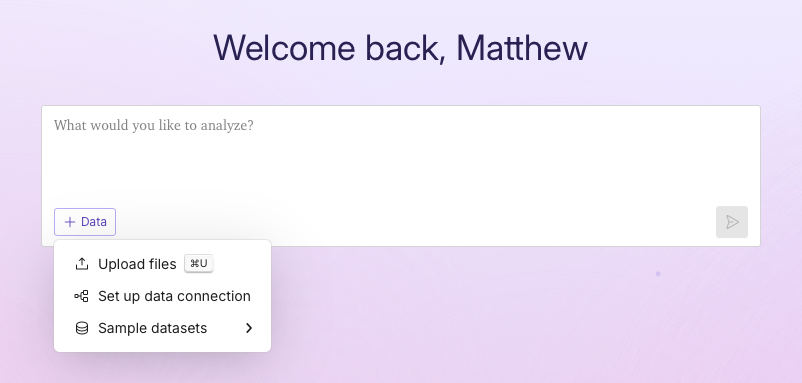
Uploading files
Select one or more local files using the dialog box. Plotly Studio can work with most structured data formats, including .csv, .tsv, .xlsx, and more.
Tip
You can also ask the chat to generate sample data for your industry or use case (for example, "Create a sample dataset for a retail sales dashboard").
If you upload an unstructured data file (like .txt or .md), the AI agent will ask you how you'd like to work with it, or you can tell it directly (for example, "Count the frequency of words in this file").
Once your data is loaded, you can query it. See Querying data.
Connect to external data sources
To connect to an external data source (Snowflake, PostgreSQL, AWS S3, and more):
-
Request a connection in the chat by selecting Set up data connection:
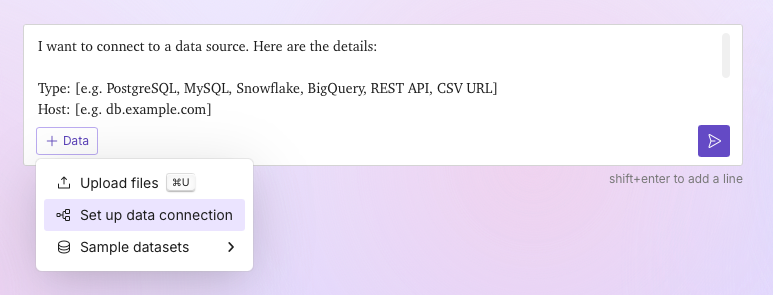
Or describe the data source you want to connect to. For example:
Connect to my PostgreSQL databaseConnect to my S3 bucketFetch data from the GitHub APISee Example data prompts for more examples.
-
If your data source requires authentication, the Credentials panel opens. Enter the required information for your data source, and select Continue.
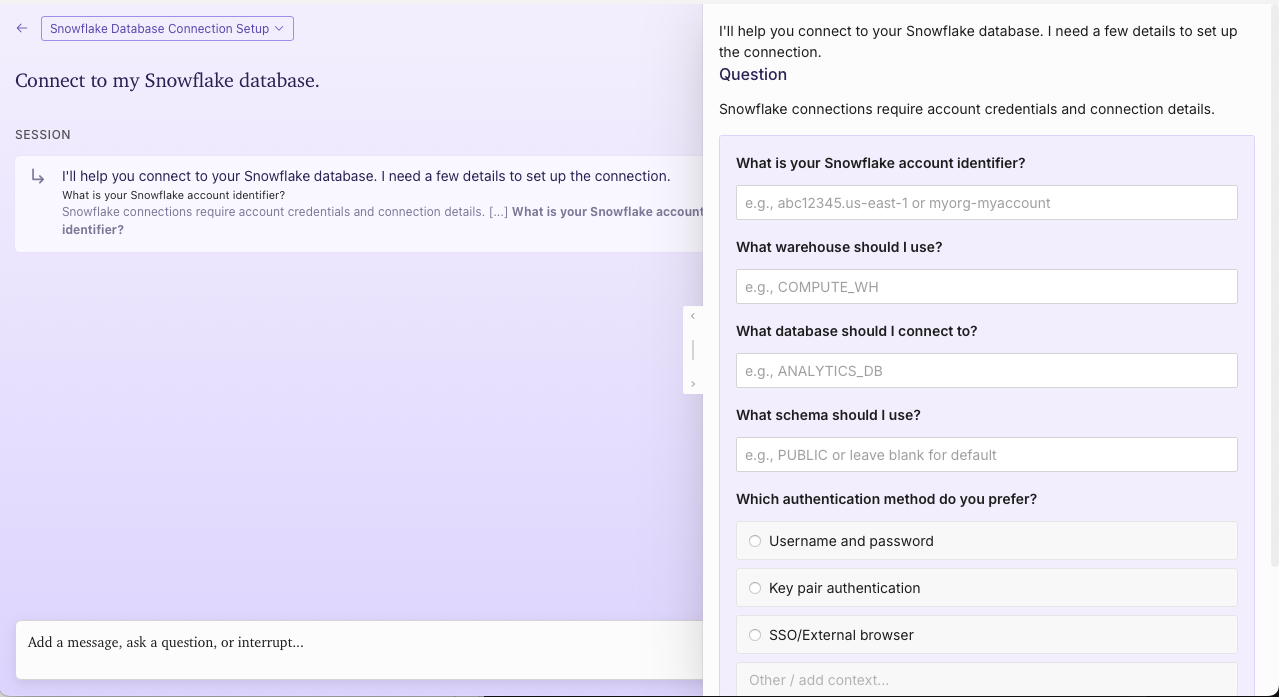
Note
When you add credentials, they are securely stored in your computer's keychain. When you publish your app, they are stored as secrets on Plotly Cloud or environment variables on Dash Enterprise, and used to connect to your data source when the app loads.
Tip
Some data sources support multiple authentication methods. If the credential fields don't match your setup, ask in the chat for a different method (e.g., "Connect using an API key" or "Connect using username and password").
-
After entering your credentials, Plotly Studio is ready to explore your data. You can request a specific table or tables, or ask a question and let Plotly Studio autonomously explore the dataset for you. For example:
Load the sales table.How many sales did we make last quarter?
Tip
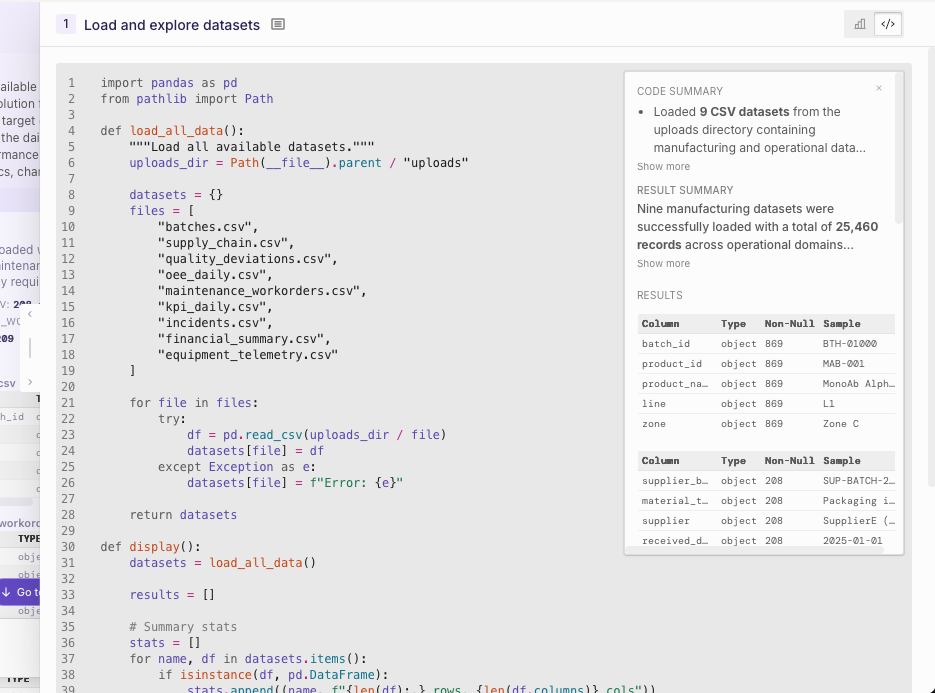
View the Code tab to see the Python code and a plain-language description of how your data is loaded.
Using data from multiple sources
You can add multiple files or external sources and tell Plotly Studio how to combine them.
Attach multiple files by selecting Data > Upload Files, or ask the chat to connect to another source. Then tell the chat how to work with your data. Files don't need to be of the same type. For example, if you upload a CSV with survey results and a JSON file with the survey schema, you could ask:
Merge the survey results with the schema
Data sources and credentials within a project
A project can hold more than one data source — for example, a data warehouse connection alongside an uploaded file — and each can have its own credentials. Data sources and their credentials are configured once per project and shared across all sessions within it. This means you don't need to reconnect to a data source or re-enter its credentials each time you start a new session in the same project.

Example data prompts
Connecting to a database:
Connect to my PostgreSQL database
Loading a specific table from a database:
Connect to my MySQL database. Show me the customers table.
Loading data from cloud storage:
Connect to my S3 bucket and load the sales data CSV
Fetching data from an API:
Get daily high and low temperatures for New York
for the past 30 days from the Open-Meteo API
Loading data from a public Google Sheet:
Load data from this Google Sheet
(no API key required): https://docs.google.com/spreadsheets/d/your-sheet-id
Loading a file from a URL:
Load the CSV file from this URL:
https://raw.githubusercontent.com/plotly/datasets/master/gapminderDataFiveYear.csv
Combining files with identical schemas:
Combine the contents of both output_001.csv and output_002.csv into
a single output. The schemas are identical between them.
Querying data
Once you are connected to your data source, you can query it through natural language using the chat interface. If Plotly Studio detects issues with the data, it proactively cleans the data and prompts you for clarification if anything is unclear.
When querying through Plotly Studio, you can ask broad and/or specific questions and Plotly Studio handles the required operations.
Here are some examples:
Filtering:
Show only shipments with defects
Which items came from the Osaka factory?
Which shipments were created in June 2022?
Calculated results:
Show me the average duration between order creation and
shipping date and note any significant outliers.
Create the following weight categories: light if
weight < 0.5, medium if 0.5-1.5, heavy if > 1.5.
Show me which shipments were delayed, taking more than 30 days.
Cleaning data:
Ignore shipments with missing delivery locations.
Fill missing weight values with the average.
Aggregating and grouping:
How many shipments were there for each factory location?
What was the average shipping days by delivery location?
Tip
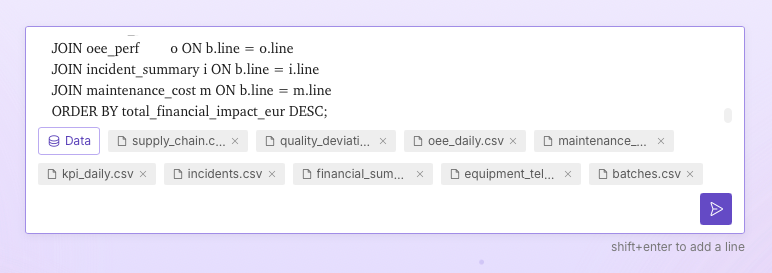
If you have existing SQL queries, you can enter them into the chat as a starting point.
Editing an existing data source
You can update a data source in a session at any time. Simply tell the agent that you would like to change the details of your data connection and the configuration panel will reappear.
Troubleshooting
If you encounter connection issues, Plotly Studio's agent automatically tries to resolve them by inspecting the error logs when running connection code. It may prompt you for clarification if it doesn't know what steps to try next. Common issues that may arise when connecting to data include:
- Incorrect credentials: Ask Plotly Studio to update your username, password, or access keys.
- Network connectivity: Ensure your data source is accessible from your network.
- Permission errors: Confirm your credentials have the necessary permissions.
How your data is used
Note
This differs from how Plotly Studio's classic workflow handles your data. It is therefore very important to ensure that you assign the proper access privileges to the role associated with your credentials, and prompt the agent responsibly.
When Plotly Studio's agent connects to your data source, it has autonomy to write and run arbitrary queries to respond to your request. For example, it can run queries to show all databases, schemas, and tables it has access to. This allows the agent to effectively enrich its own context and answer broad questions with luminous precision. However, this autonomy should be handled with care.
The agent can send an indefinite amount of information about your data source and possibly some, or all, of the data itself back to the LLM provider. Plotly does not directly control this aspect of the agent's behavior.
As a best practice, always ensure the role associated with your data source credentials is scoped appropriately. E.g. do not allow WRITE or DELETE access if they are not needed, and do not give it access to tables with sensitive information.
For customers who require additional security, the Enterprise plan allows the configuration of a private LLM provider. See our pricing page for more information about the Enterprise plan.