Heatmaps
Heatmap charts use color to represent values in a two-dimensional grid. Heatmaps are useful for showing patterns and correlations across two categorical dimensions, helping you identify hot spots and trends. You can display aggregated values in a matrix format and apply styles and customizations like color scales and text annotations.
Basic heatmap example
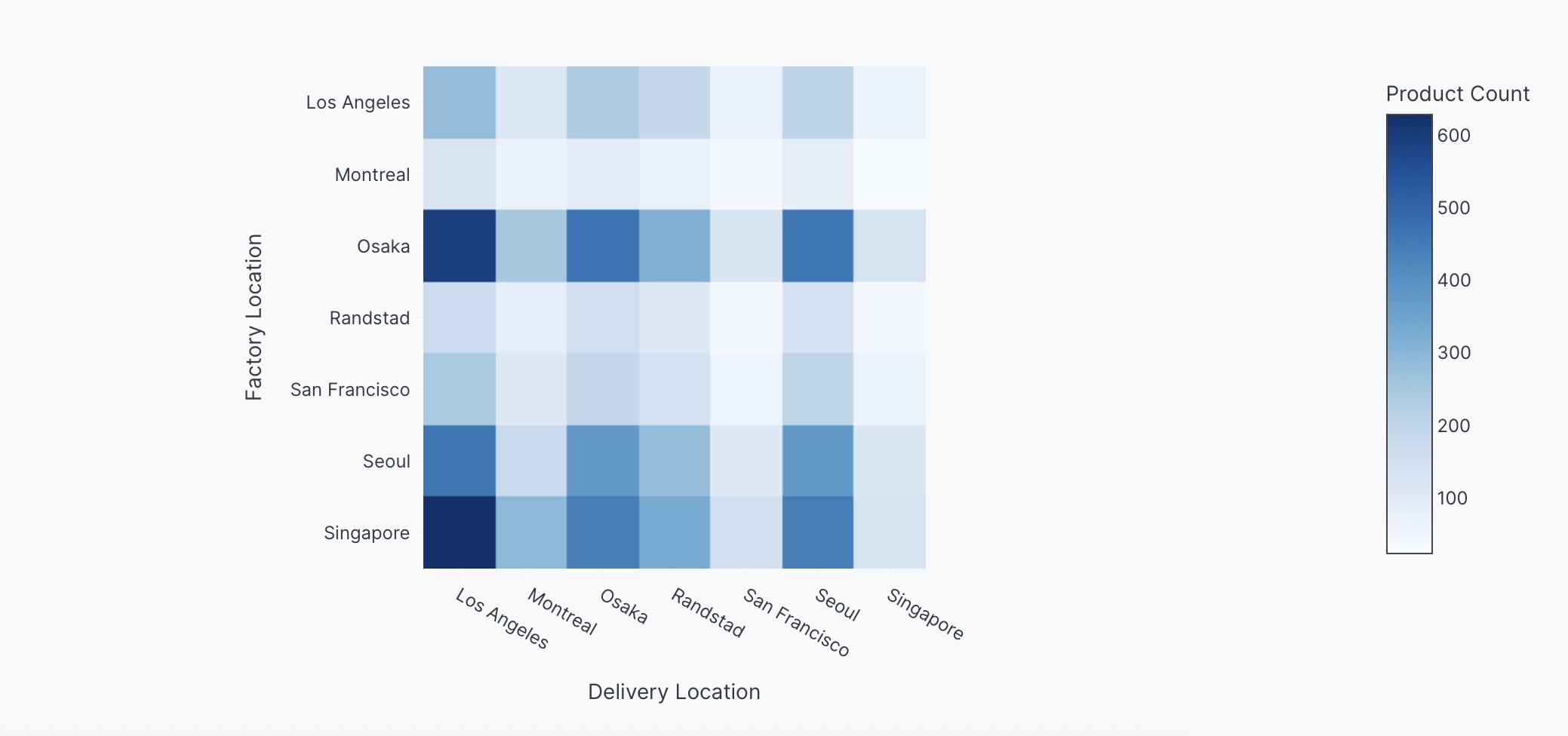
Example of showing values in a matrix format.
Create a heatmap of <Values> by <X> and <Y>.
The following example uses this prompt structure with the delivery_location and factory_location columns from the built-in Plotly Studio dataset:
Create a heatmap of count of products by delivery location and factory location.
Annotated heatmap
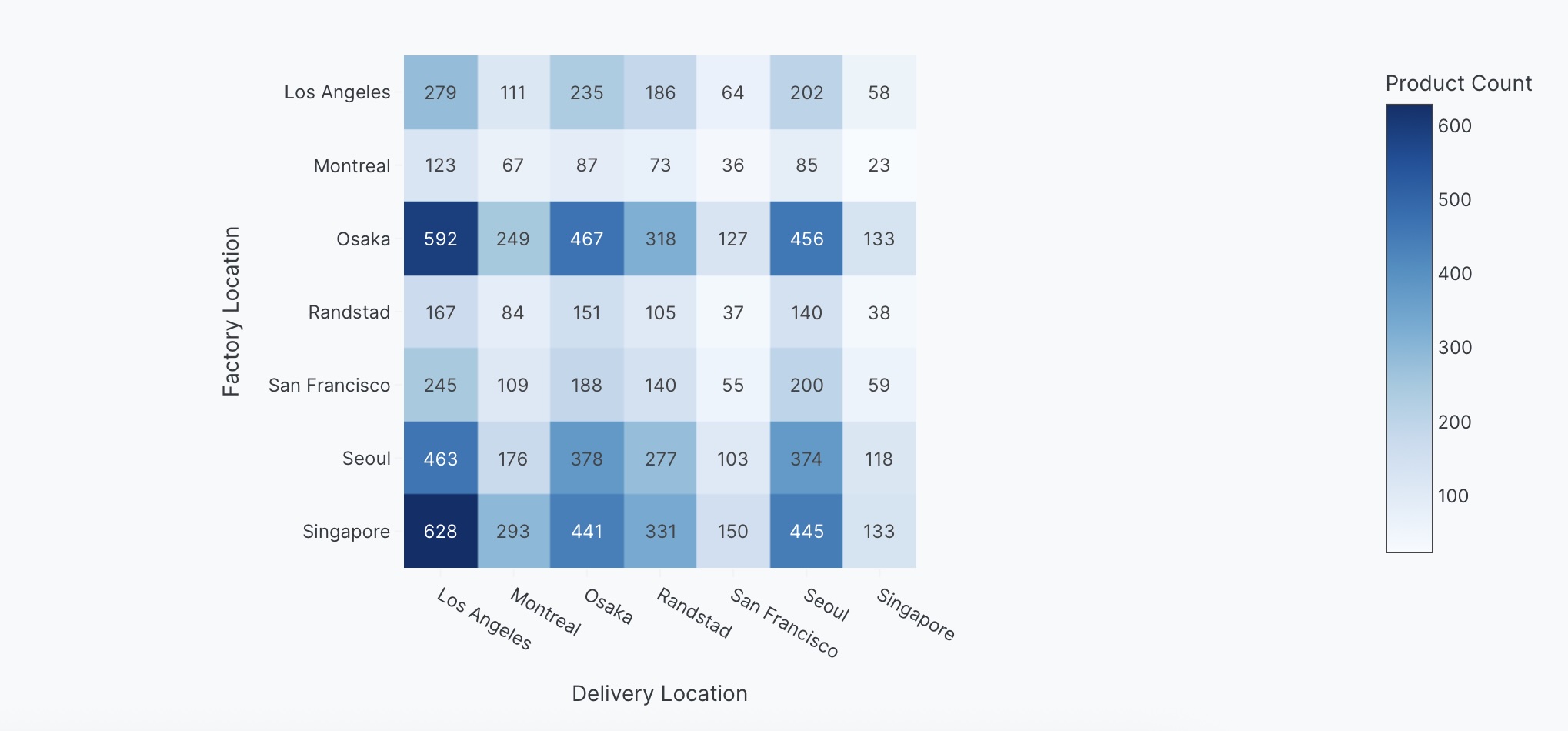
Display the actual values as text on each cell for precise reading.
Create a heatmap of <Values> by <X> and <Y>. Show values as text on cells.
The following example uses this prompt structure with the delivery_location and factory_location columns from the built-in Plotly Studio dataset:
Create a heatmap of count of products by delivery location and factory location.
Show values as text on cells.
Interactive controls
Add dropdowns and other controls to make your heatmaps interactive. Controls let users filter and explore the data dynamically.
Create a heatmap of count of products by delivery location and factory location.
Add a dropdown to select color scale (Viridis, RdBu, YlOrRd) - Default Viridis.
Add a checkbox to toggle text annotations - Default show values.
Prompt keywords reference
Use these keywords and phrases in your prompts to customize your heatmap.
Chart
Here are some keyword suggestions to create and customize a chart:
| Keyword/Phrase | Description | Example |
|---|---|---|
| X | The variable to show on the horizontal axis | delivery location |
| Y | The variable to show on the vertical axis | factory location |
| Values | The variable to use for cell colors | count of products |
Data
Specify data instructions in your prompt to transform, filter, or aggregate your data before visualization.
Count products by factory location and delivery location.
Calculate total value as price times quantity.
Here are some keyword suggestions:
| Keyword/Phrase | Description | Example |
|---|---|---|
| Aggregation | Specify how to aggregate data | count products by factory location and delivery location |
| Computed field | Create new calculated fields from existing data | calculate total value as price times quantity |
| Filter | Filter data to show only specific records | filter to show only defect = true |
Options
Specify options in your prompt to add interactive controls that allow users to dynamically filter, transform, and visualize data without regenerating the chart.
Add a dropdown to select color scale (Viridis, RdBu, YlOrRd) - Default Viridis.
Add a checkbox to toggle text annotations - Default show values.
Here are some keyword suggestions. See App Controls for a complete list of control types and additional examples.
| Keyword/Phrase | Description | Example |
|---|---|---|
| Dropdown | Add a dropdown menu to filter by categories | Add a dropdown to select color scale (Viridis, RdBu, YlOrRd) - Default Viridis |
| Checkbox | Add a checkbox to toggle options | Add a checkbox to toggle text annotations - Default show values |
Chart styles
Specify chart styles in your prompt to control the visual appearance and formatting of your heatmap.
Use Viridis color scale.
Show values as text on cells.
Hide gridlines.
Here are some keyword suggestions:
| Keyword/Phrase | Description | Example |
|---|---|---|
| Color scale | Color scale for the heatmap. See built-in color scales | Use Viridis color scale |
| Reverse color scale | Flip the color scale direction | Reverse color scale |
| Text annotations | Show values as text on cells | Show values as text on cells |
| Hover text | What to show when hovering over cells | Show average weight on hover |
| Axis labels | Customize the text shown on the axes | Label x-axis as "Destination"Label y-axis as "Origin" |
| Gridlines | Control gridline display | Hide gridlines |