Scatter Plots
Scatter plots are useful for showing the relationship between columns. Scatter plots in Plotly Studio are highly customizable - you can map additional columns to color and marker size, and apply styles and customizations like trend lines, opacity, and axis labels.
Basic scatter example
Here's an example of how to structure a prompt to plot two columns against each other to see their relationship.
The prompt specifies the chart type as well as the names of the columns from the dataset to use for the X and Y axes:
Create a scatterplot of <X> vs. <Y>.
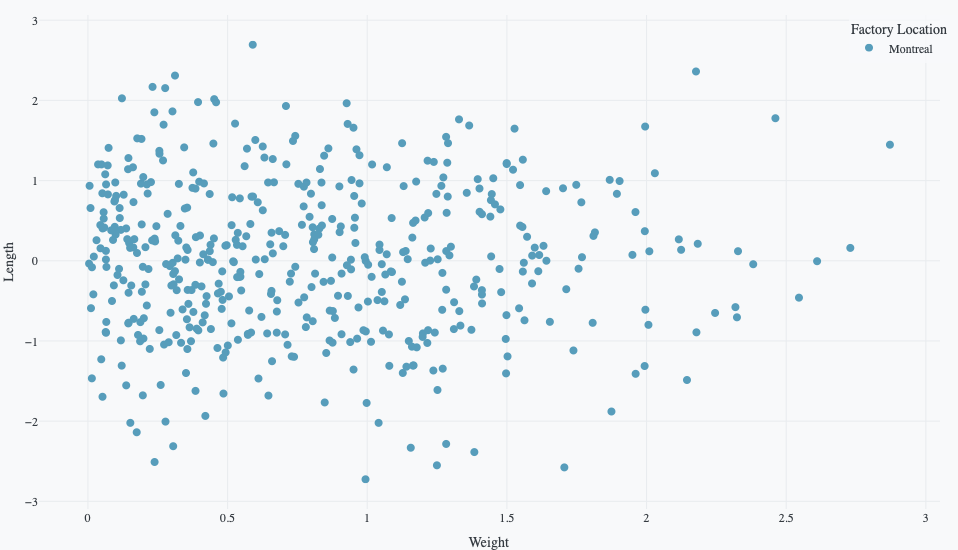
The following example uses this prompt structure with the "weight" and "length" columns from the built-in Plotly Studio dataset:
Create a scatterplot of weight vs. length.
Color example
Use color to show different values of a categorical or numeric column and identify patterns.
Create a scatterplot of <X> vs. <Y>, and color by <Column Name>.
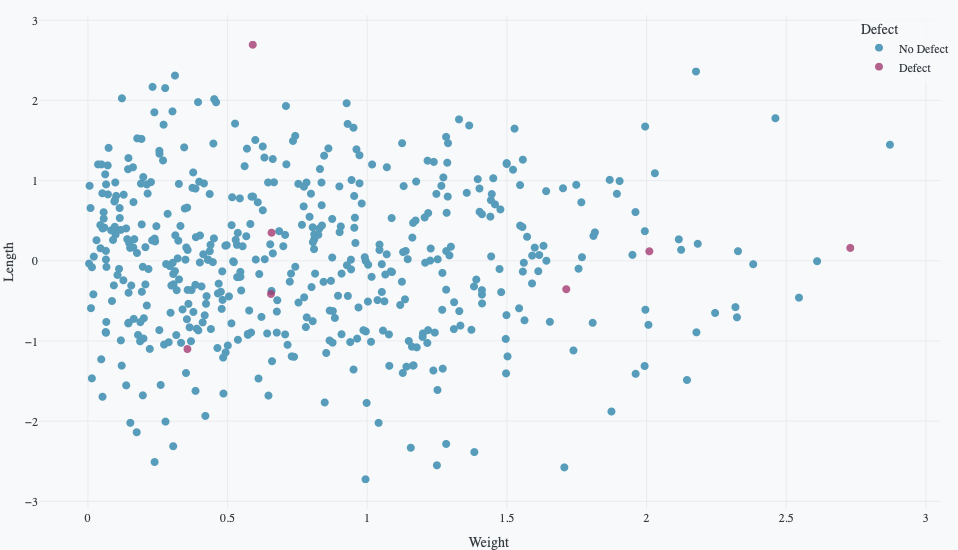
The following example uses this prompt structure with the "weight", "length", and "defect" columns from the built-in Plotly Studio dataset:
By category example
Create a scatterplot of weight vs. length, and color by defect.
By numeric value example
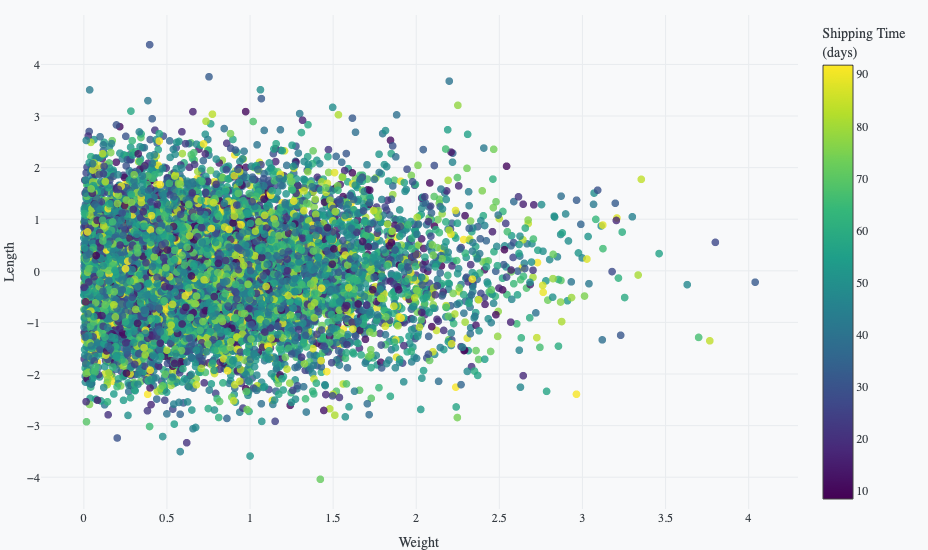
The following example plots "weight" vs "length", colored by a computed "shipping_time" field, using the built-in Plotly Studio dataset:
Create a scatterplot of weight vs. length by shipping time.
Shipping time is calculated as the difference between shipped
date and created date in days.
Size by column
Vary marker size based on a numeric column to add a third dimension to a scatter plot.
Create a scatterplot of <X> vs. <Y>. Size by <Column Name>.
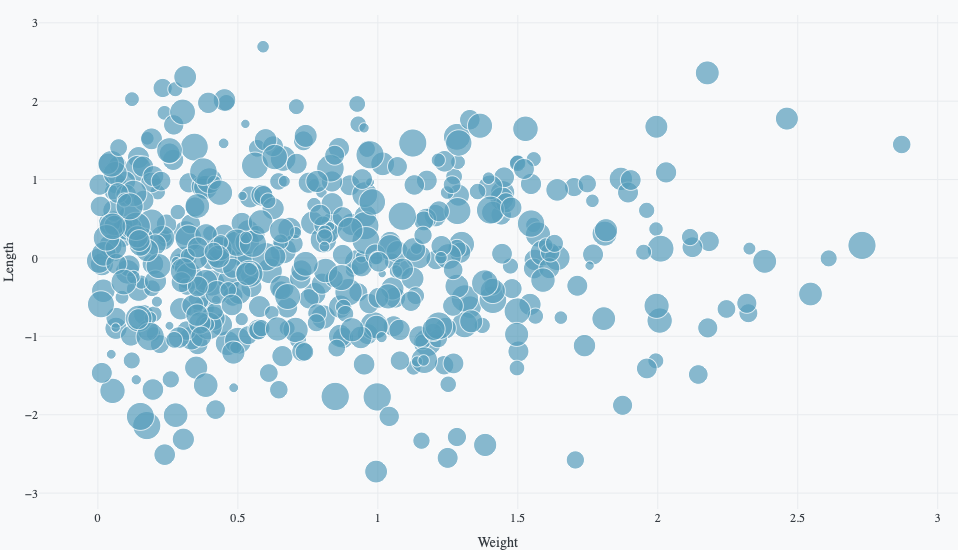
The following example uses this prompt structure to plot "weight" and "length", with marker size representing "shipping time" (calculated as a computed field).
Create a scatterplot of weight vs. length by shipping time.
Shipping time is calculated as the difference between shipped
date and created date in days. Size by shipping time.
Scatter plots with categorical axes
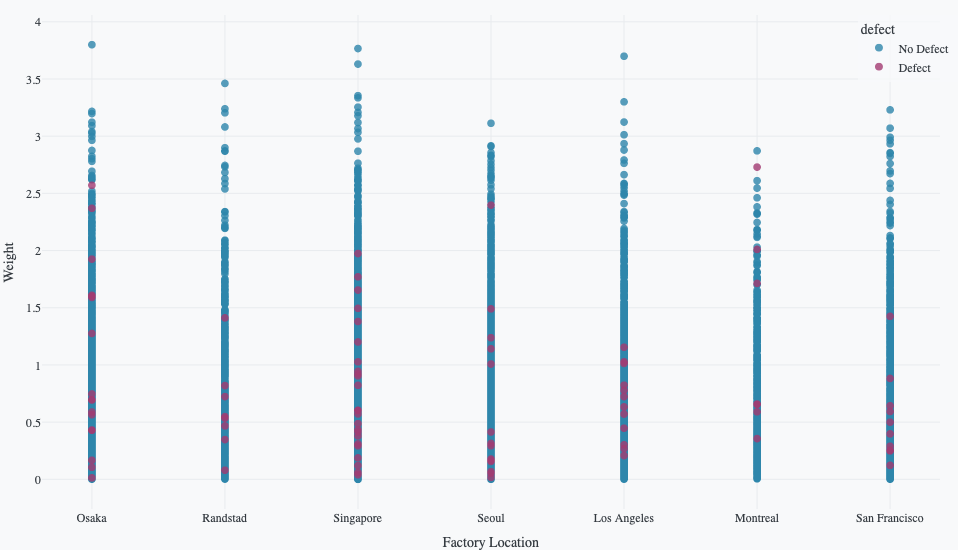
Earlier examples show numeric values on both chart axes, but other data types can also be mapped to the axes. A scatter plot where one axis is categorical is often known as a dot plot. They are specified the same way as numeric values.
Create a scatterplot of <X> vs. <Y>.
The following example uses this prompt structure with the factory_location and weight columns.
Create a scatterplot of factory location vs. weight.
Facet plots by category
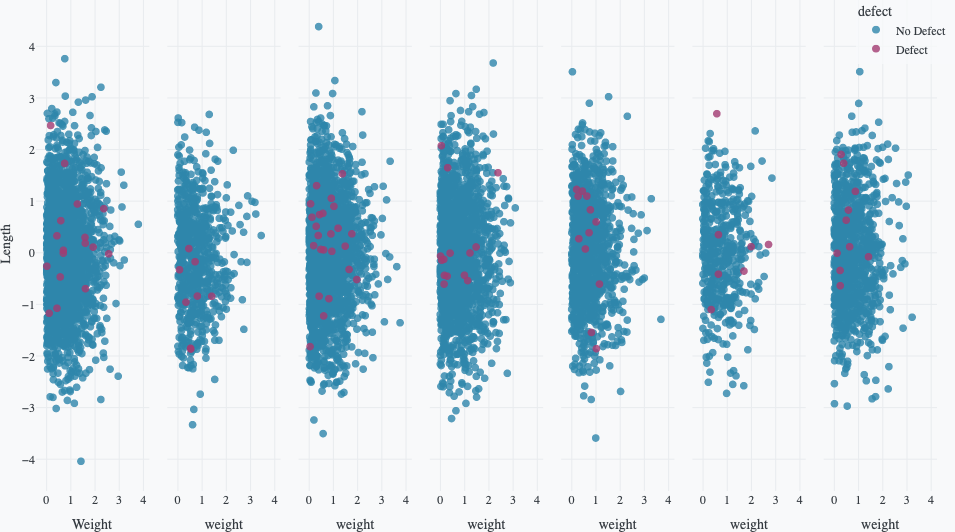
Facet plots, also known as trellis plots or small multiples, create multiple subplots with the same axes, where each subplot shows a different subset of the data. This helps you compare patterns across categories. You can arrange facets by columns (horizontally), by rows (vertically), or both.
Create a scatterplot of <X> vs. <Y>. Facet
<vertically/horizontally/both vertically and horizontally> by <Column Name>.
The following example uses this prompt structure with the weight, length, and factory_location columns from the built-in Plotly Studio dataset:
Create a scatterplot of weight vs. length by factory location.
Facet by factory location.
Prompt keywords reference
Use these keywords and phrases in your prompts to customize your scatter plot.
Chart
Here are some keyword suggestions to create and customize a chart:
| Keyword/Phrase | Description | Example |
|---|---|---|
| X | The column to show on the horizontal axis | Weight on the X-axis |
| Y | The column to show on the vertical axis | Length on the Y-axis |
| Color | Color points by different groups or values | Color by Factory location |
| Size | Make scatter points larger or smaller based on a value from the dataset | Size by weight |
| Symbol | Map different marker shapes to categories | Use different symbols for each defect |
| Facet columns | Create multiple subplots side-by-side for each category | Facet by factory location |
| Facet rows | Create multiple subplots stacked vertically for each category | Facet vertically by defect |
Data
Specify data instructions in your prompt to specify how to transform, filter, or aggregate your data for visualization.
Calculate shipping days as the difference between shipped date and
created date in days.
Here are some keyword suggestions to use in this section:
| Keyword/Phrase | Description | Example |
|---|---|---|
| Aggregation | Specify how to aggregate data | Calculate the average weight by Factory location |
| Calculate | Create new calculated fields from existing data | Calculate shipping days as the difference between shipped date and created date in days |
| Filter | Filter data to show only specific records | Filter to show only defects |
Options
Specify options in your prompt to add interactive controls that allow you to dynamically filter, transform, and visualize data without regenerating the chart.
Add a dropdown for factory (All, Osaka, Seoul, Singapore) - Default All
Add a dropdown to filter by Weight range (All, 0-1 kg, 1-2 kg, 2-3 kg) - Default All
Here are some keyword suggestions to use with this section. See App Controls for a complete list of control types and additional examples.
| Keyword/Phrase | Description | Example |
|---|---|---|
| Dropdown | Add a dropdown menu to filter by categories | Add a dropdown to select factory (All, Osaka, Seoul) - Default All |
Chart styles
Specify chart styles in your prompt to control the visual appearance and formatting of your scatter plot.
Use these custom colors: #FF5733, #33FF57, #3357FF.
Set opacity to 0.5.
Add a linear trend line.
Label x-axis as "Product Weight (kg)".
Here are some keyword suggestions to use in this section:
| Keyword/Phrase | Description | Example |
|---|---|---|
| Custom colors | Specify exact colors for categories or gradients | Use custom colors: #FF5733, #33FF57, #3357FF |
| Marker size | Set a fixed size for all markers | Set marker size to 12 |
| Marker symbol | Set a specific shape for all markers. See marker style options | Use square markers |
| Marker opacity | How see-through the points are (0=invisible, 1=solid) | Set marker opacity to 0.5 |
| Text on points | Display text labels directly on data points | Show Serial number as text on points |
| Hover text | What to show when hovering over points | Show Serial number on hover text |
| Axis labels | Rename axis labels to be more readable | Label x-axis as "Product Weight (kg)"Label y-axis as "Product Length (cm)" |
| Background color | Set the background color of the plot | Set background color to lightblue |
| Grid lines | Show or hide grid lines on the plot | Hide grid lines |
| Color scale | Specify color scale for continuous color mapping. See built-in color scales | Use Viridis color scale |
| Trend line | Add a line showing the overall trend | Add a linear trend line |
| Logarithmic scale | Use log scale for large ranges (useful for exponential data) | Use logarithmic scale for the y-axis |
| Axis range | Set minimum and maximum values for axes | Set x-axis range from 0 to 3 |
| Legend | Control legend display and position | Show legend at top right |