Pie Charts
Pie charts are useful for showing proportions and percentages of a whole. You can also create donut charts with a hole in the center, and apply styles and customizations like custom colors, pulled-out slices, and text labels.
Basic pie example
Example of showing proportions across categories.
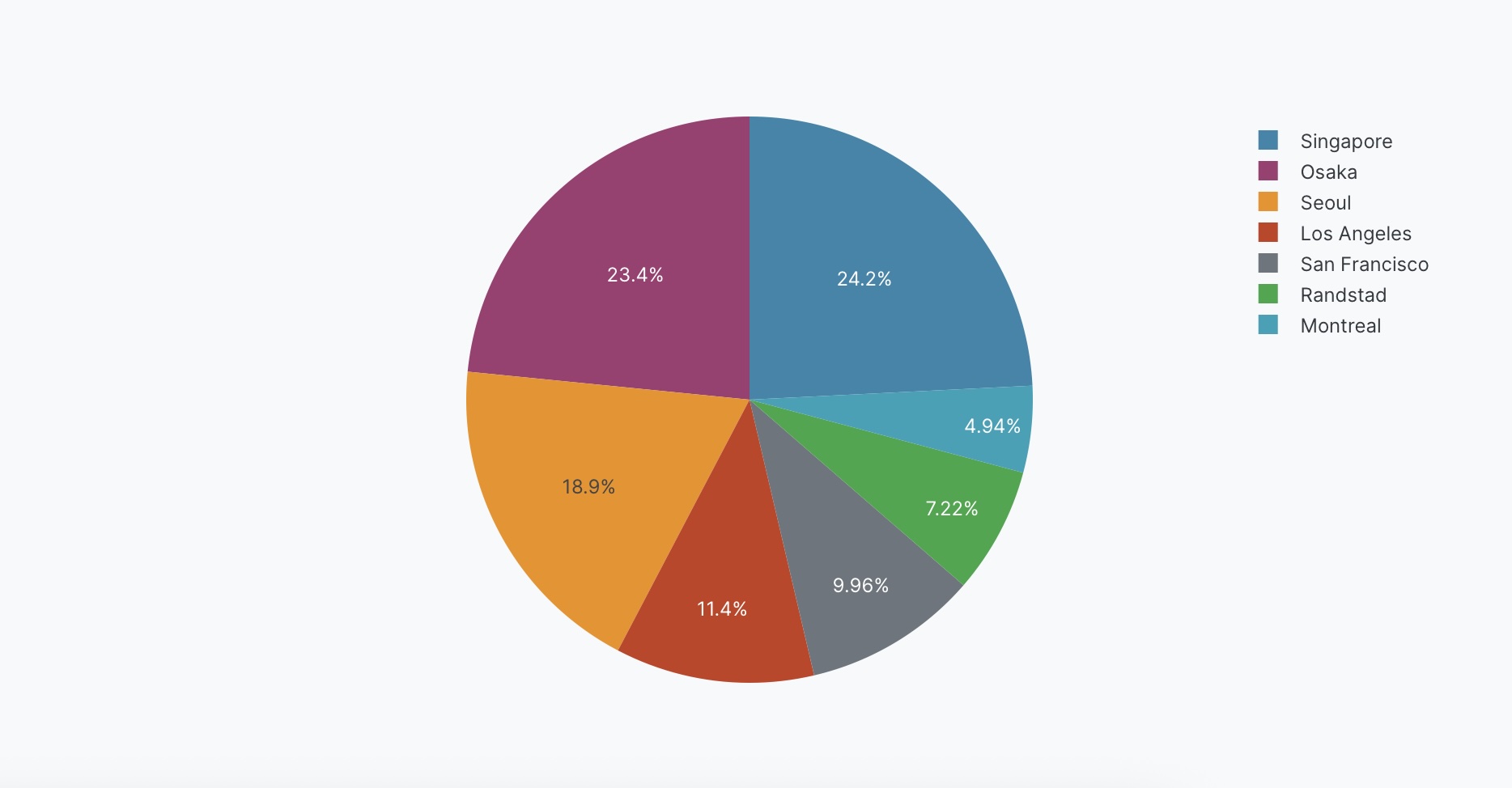
Create a pie chart of <Values> by <Names>.
The following example uses this prompt structure with the factory_location column from the built-in Plotly Studio dataset:
Create a pie chart of count of products by factory location.
Donut chart
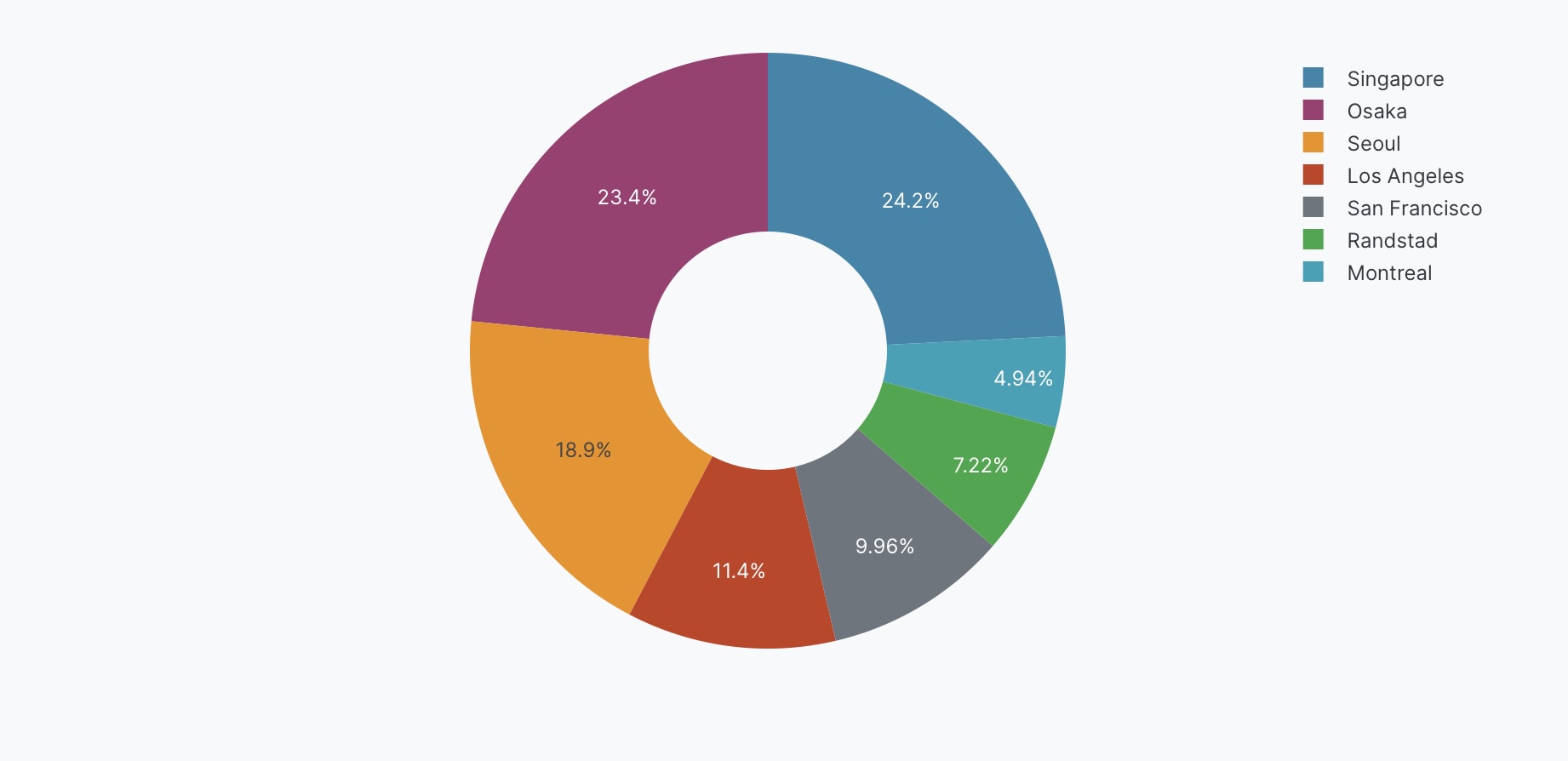
Create a donut chart by adding a hole in the center.
Create a pie chart of <Values> by <Names>. Use a donut chart with hole size <value>.
The following example uses this prompt structure with the factory_location column from the built-in Plotly Studio dataset:
Create a pie chart of count of products by factory location.
Use a donut chart with hole size 0.4.
Pulled-out slices
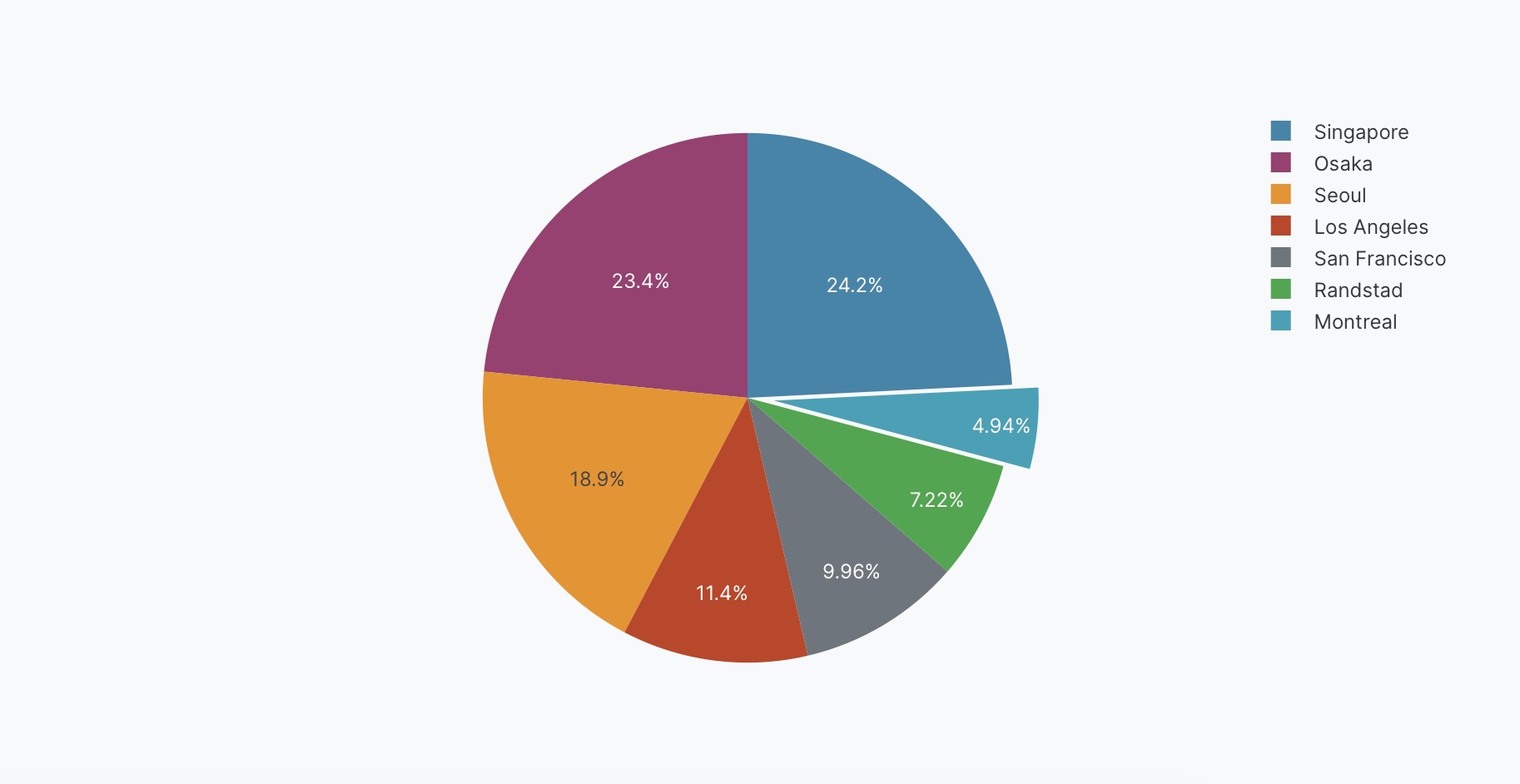
Pull out specific slices to emphasize them. You can optionally specify how far to pull out the slice as a fraction (0 to 1, where higher values pull further out).
Create a pie chart of <Values> by <Names>. Pull out the <category> slice by <value>.
The following example uses this prompt structure with the factory_location column from the built-in Plotly Studio dataset:
Create a pie chart of count of products by factory location.
Pull out the Montreal slice by 0.2.
Custom colors
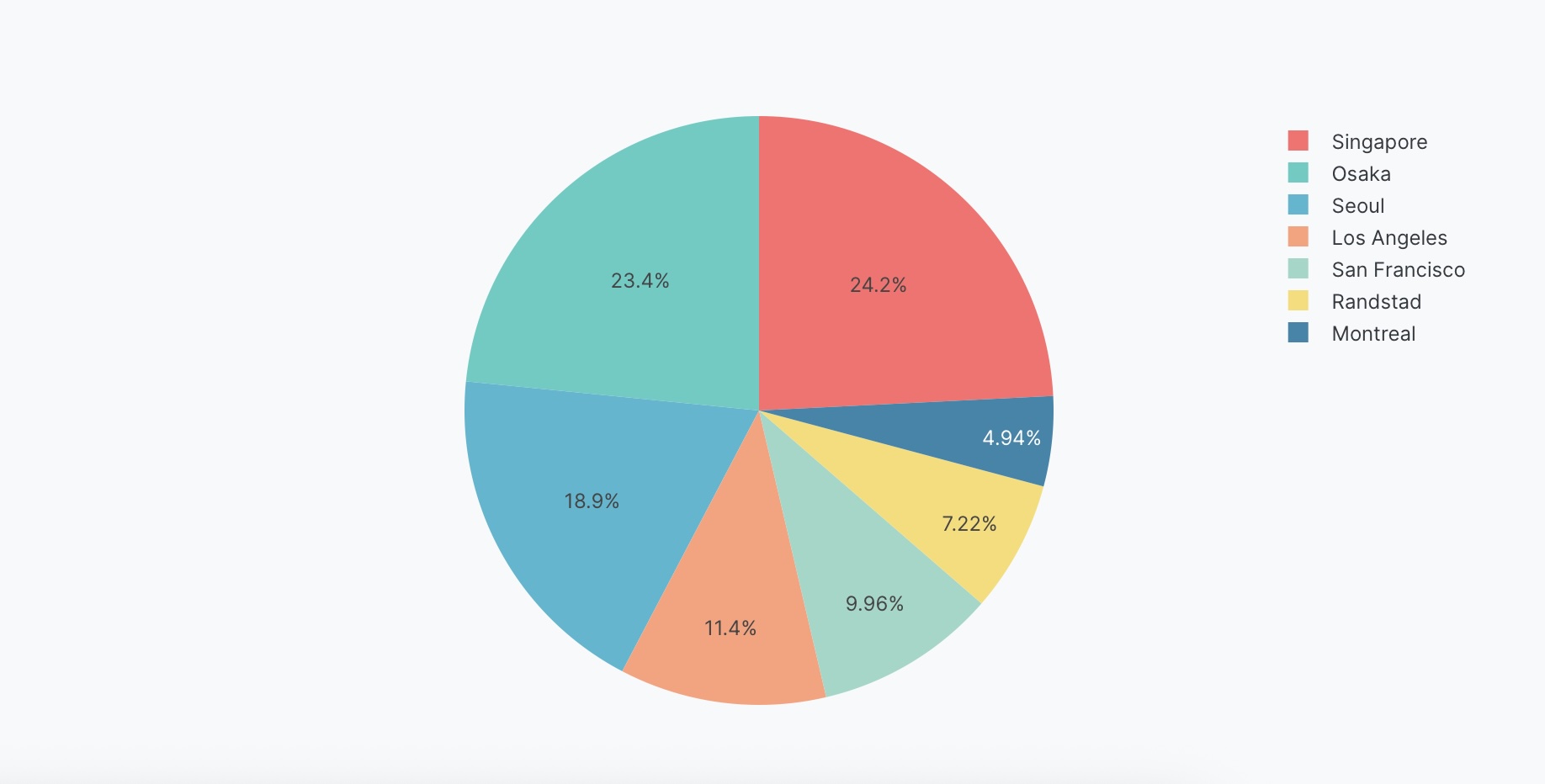
Specify exact colors for each slice.
Create a pie chart of <Values> by <Names>. Use custom colors: <color_list>.
The following example uses this prompt structure with the factory_location column from the built-in Plotly Studio dataset:
Create a pie chart of count of products by factory location.
Use custom colors: #FF6B6B, #4ECDC4, #45B7D1, #FFA07A, #98D8C8, #F7DC6F.
Explicit color mapping
You can also map colors to specific categories.
Create a pie chart of <Values> by <Names>.
Map <category1> to <color1>, <category2> to <color2>.
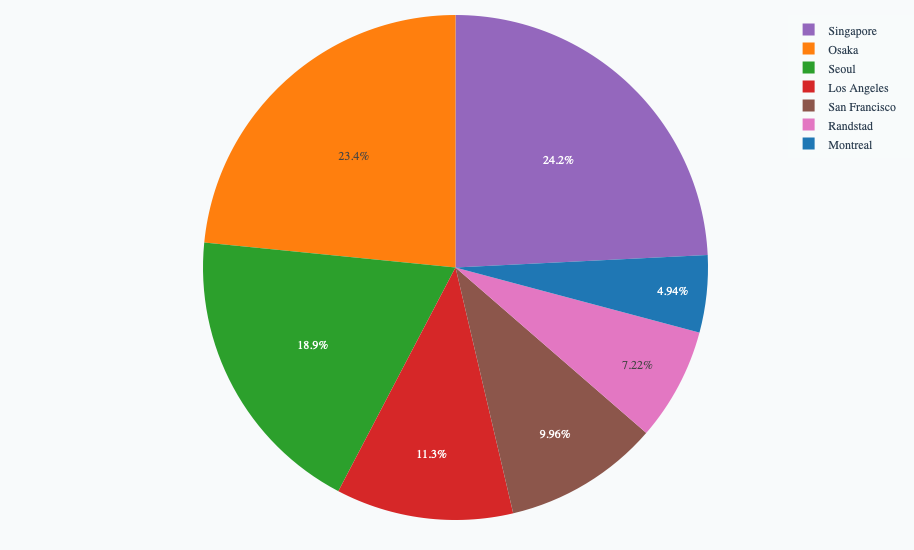
The following example uses this prompt structure with the built-in Plotly Studio dataset to assign specific colors to each factory location:
Create a pie chart of count of products by factory location.
Map Montreal to #1f77b4, Osaka to #ff7f0e, Seoul to #2ca02c,
Los Angeles to #d62728, Singapore to #9467bd,
San Francisco to #8c564b, Randstad to #e377c2.
Text on slices
Control what text appears on the slices (percentages, values, labels, or combinations).
Create a pie chart of <Values> by <Names>. Show <text_type> on slices.
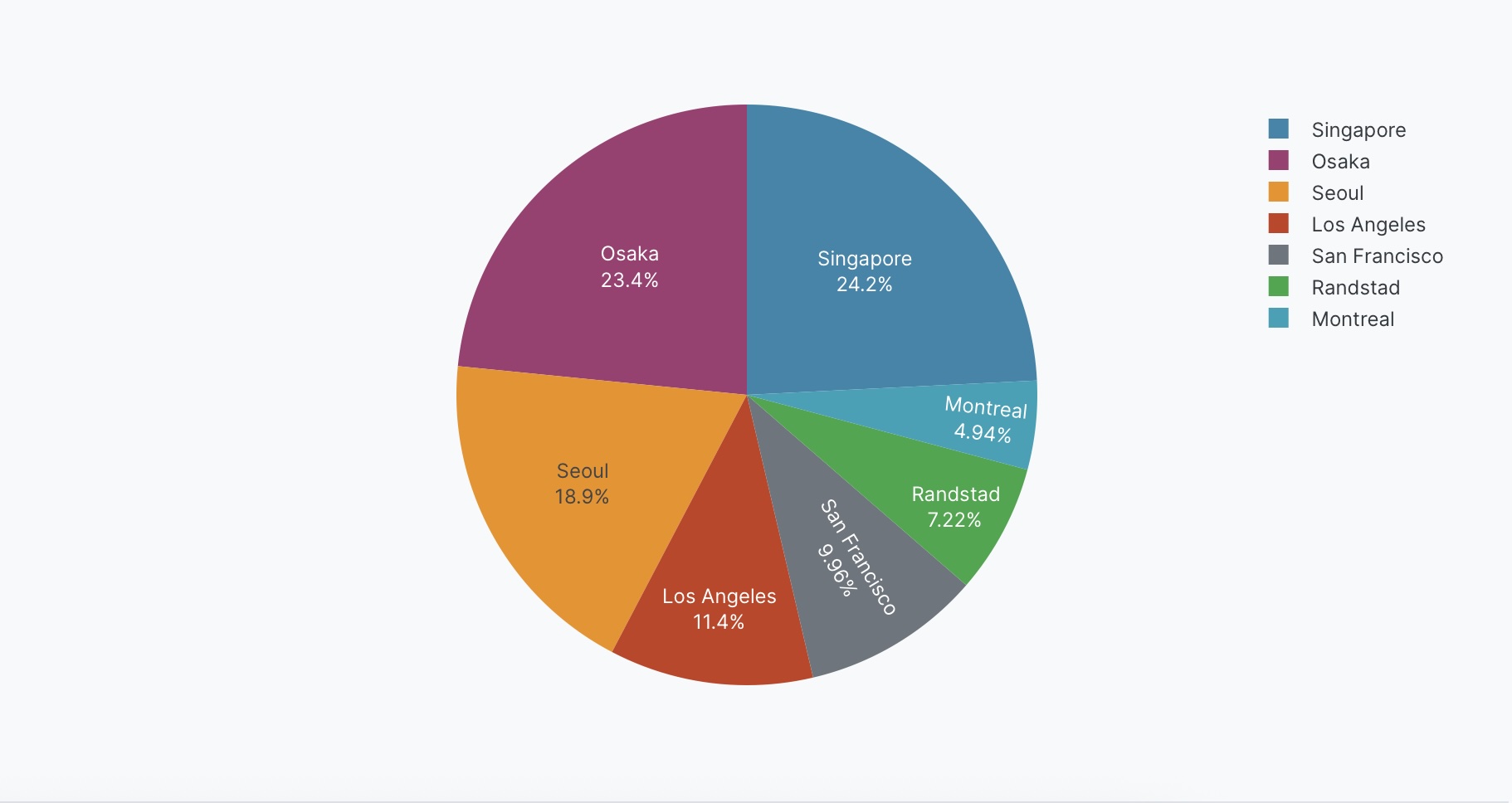
The following example uses this prompt structure with the factory_location column from the built-in Plotly Studio dataset:
Create a pie chart of count of products by factory location.
Show percentages and labels on slices.
Interactive controls
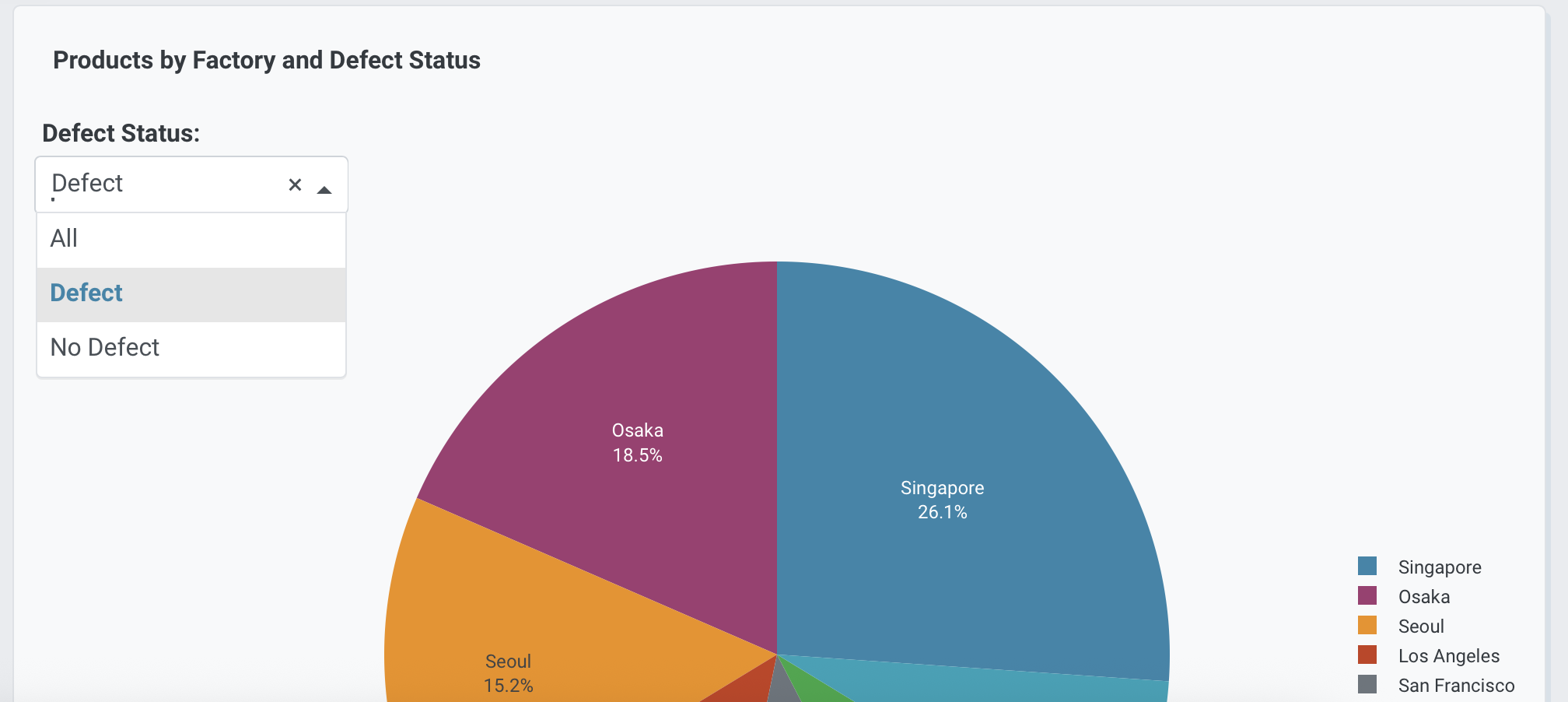
Add dropdowns and other controls to make your pie charts interactive. Controls let users filter and explore the data dynamically.
Create a pie chart of count of products by factory location.
Add a dropdown to select defect status (All, True, False) - Default All.
Prompt keywords reference
Use these keywords and phrases in your prompts to customize your pie chart.
Chart
Here are some keyword suggestions to create and customize a chart:
| Keyword/Phrase | Description | Example |
|---|---|---|
| Values | The column to use for slice sizes | count of products |
| Names | The column to use for slice labels | factory location |
| Facet columns | Create multiple subplots side-by-side for each category | facet by defect |
| Facet rows | Create multiple plots stacked vertically by group | facet vertically by factory location |
Data
Specify data instructions in your prompt to transform, filter, or aggregate your data before visualization.
Count products by factory location.
Calculate total value as price times quantity.
Here are some keyword suggestions:
| Keyword/Phrase | Description | Example |
|---|---|---|
| Aggregation | Specify how to aggregate data | count products by factory location |
| Computed field | Create new calculated fields from existing data | calculate total value as price times quantity |
| Filter | Filter data to show only specific records | filter to show only defect = true |
Options
Specify options in your prompt to add interactive controls that allow users to dynamically filter, transform, and visualize data without regenerating the chart.
Add a dropdown to select defect status (All, True, False) - Default All.
Add a checkbox to toggle donut chart - Default regular pie.
Here are some keyword suggestions. See App Controls for a complete list of control types and additional examples.
| Keyword/Phrase | Description | Example |
|---|---|---|
| Dropdown | Add a dropdown menu to filter by categories | Add a dropdown to select defect status (All, True, False) - Default All |
| Checkbox | Add a checkbox to toggle options | Add a checkbox to toggle donut chart - Default regular pie |
Chart styles
Specify chart styles in your prompt to control the visual appearance and formatting of your pie chart.
Use custom colors: #FF6B6B, #4ECDC4, #45B7D1.
Map Montreal to blue.
Use a donut chart with hole size 0.4.
Show percentages and labels on slices.
Here are some keyword suggestions:
| Keyword/Phrase | Description | Example |
|---|---|---|
| Custom colors | Specify exact colors for slices | Use custom colors: #FF6B6B, #4ECDC4, #45B7D1 |
| Map colors | Map categories to colors | Map Montreal to blue |
| Donut chart | Add a hole in the center. Hole size (float) sets the fraction of the radius to cut out of the pie | Use a donut chart with hole size 0.4 |
| Pull out slice | Emphasize one or more slices by pulling them out from the pie. Use values between 0 and 1, where higher values pull further out | Pull out the Montreal slice by 0.2 |
| Text on slices | Control what text shows on slices | Show percentages and labels on slices |
| Text position | Where to position text on slices (inside, outside, auto) | Position text outside |
| Hover text | What to show when hovering over slices | Show total weight on hover |
| Legend | Control legend display and position | Show legend at right |