Custom Context
Custom context lets you set persistent instructions that guide the AI agent across all of your sessions.
Plotly Studio includes your custom context at the beginning of each session, alongside built-in guidance. If the custom context changes during a session, the updated context will be sent with the next request to the LLM.
Use custom context for:
- Chart styling: Color palettes, templates, legends, gridlines, and axis formatting.
- Formatting and language: Date formats, number separators, currency style, and label language.
- Branding: Standard disclaimers, captions, annotations, and attribution text.
- Business context: Industry context, audience, and recurring analysis goals.
- Calculations: Domain-specific metrics, definitions, and preferred formulas.
- Data handling defaults: Data cleaning and transformation rules you want applied consistently.
Custom context vs. skills
You can use both custom context and skills together for greater control:
- Use custom context for always-on rules that you want applied in every session.
- Use skills for reusable tasks that you run as needed during sessions.
Adding custom context
To set custom context:
- Select Main Menu > User Settings.
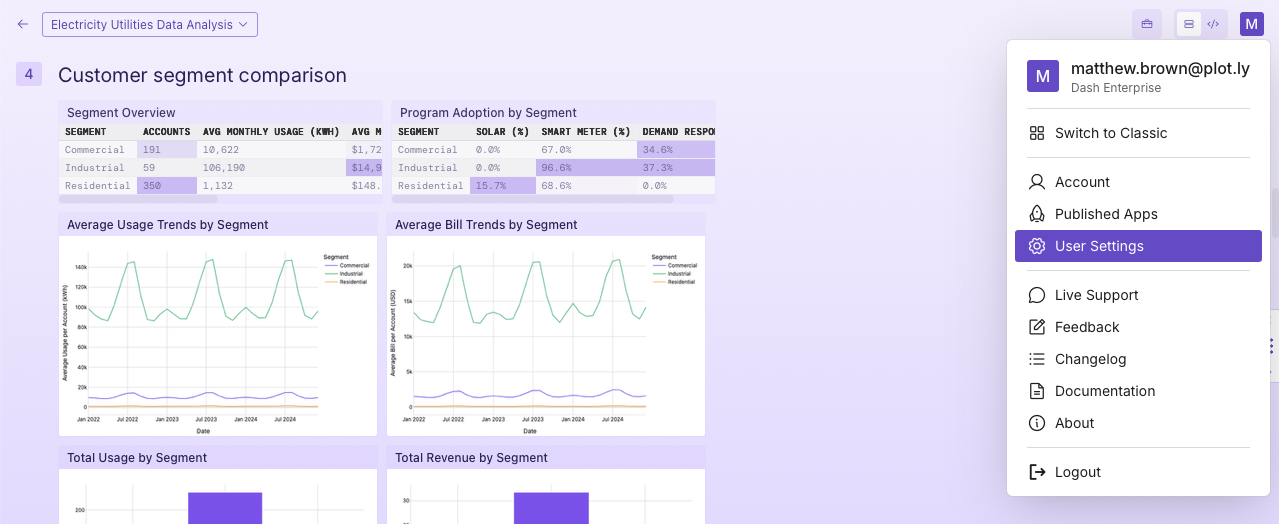
- If custom context isn't enabled, select Enable Custom Context.

- In Context, add your instructions.
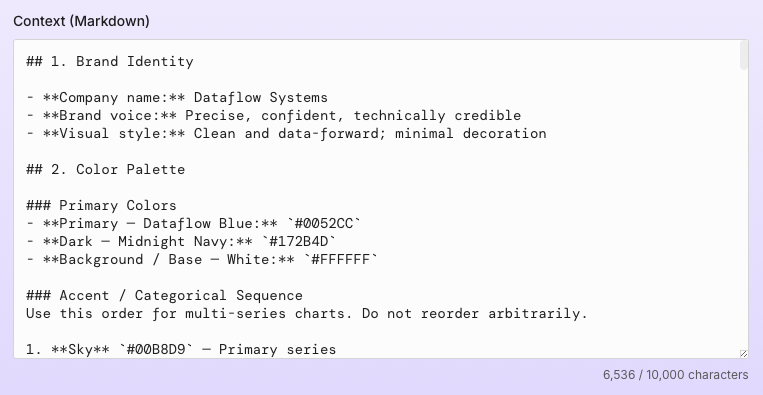
Tip
You can disable custom context at any time without deleting it. When disabled, it isn't included in prompts.
Writing tips
Write specific instructions and keep them scoped to stable preferences.
- Use short bullet points.
- State defaults directly (for example, "Use monthly aggregation by default").
- Include examples for anything ambiguous.
- Put one rule on each line.
- Move one-off tasks into a skill instead of custom context.
Examples
Chart style defaults
## Chart Styling
- Hide gridlines unless values are close together
- Use this color sequence: ["#1f77b4", "#ff7f0e", "#2ca02c"]
- Place legends horizontally below each chart
Formatting and language
## Formatting and Language
- Format dates as DD/MM/YYYY
- Use comma as decimal separator
- Use space as thousands separator (for example, 1 234 567,89)
- Use French for chart labels and report text
Data handling defaults
## Data Handling
- Lowercase all column names on load
- Remove rows with missing values in key columns
- Fill missing numeric values with the column median
Reporting defaults
## Reporting
- Start with a 5-bullet executive summary
- Always include assumptions and data limitations
- End with recommended next analyses
For session behavior and artifact workflows, see Sessions.