Projects
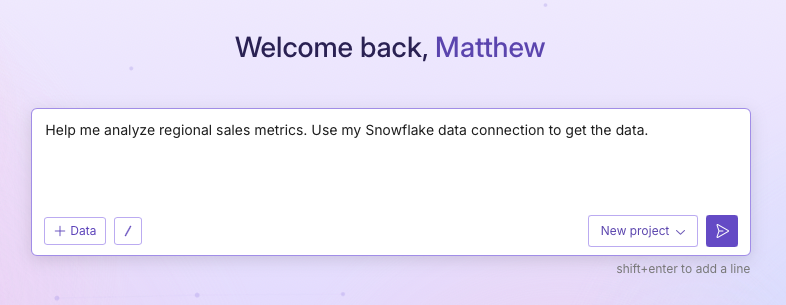
A project groups multiple related sessions together so they can share data sources, credentials, and artifacts. Projects are automatically created when you initiate a conversation from the main page of Plotly Studio.
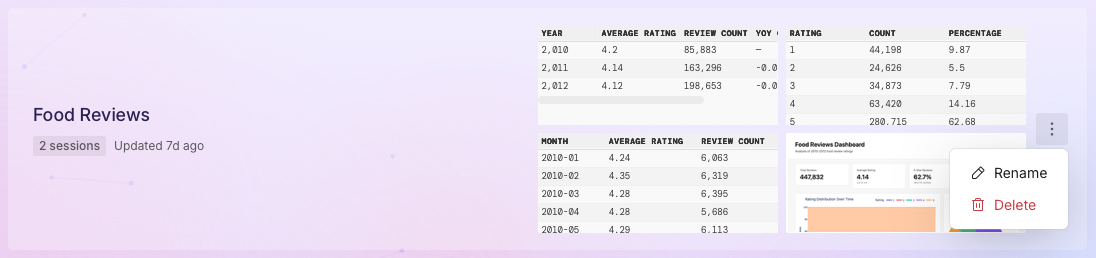
To rename or delete a project, use the triple-dots context menu associated with the desired project on the main screen of Plotly Studio.
Project overview
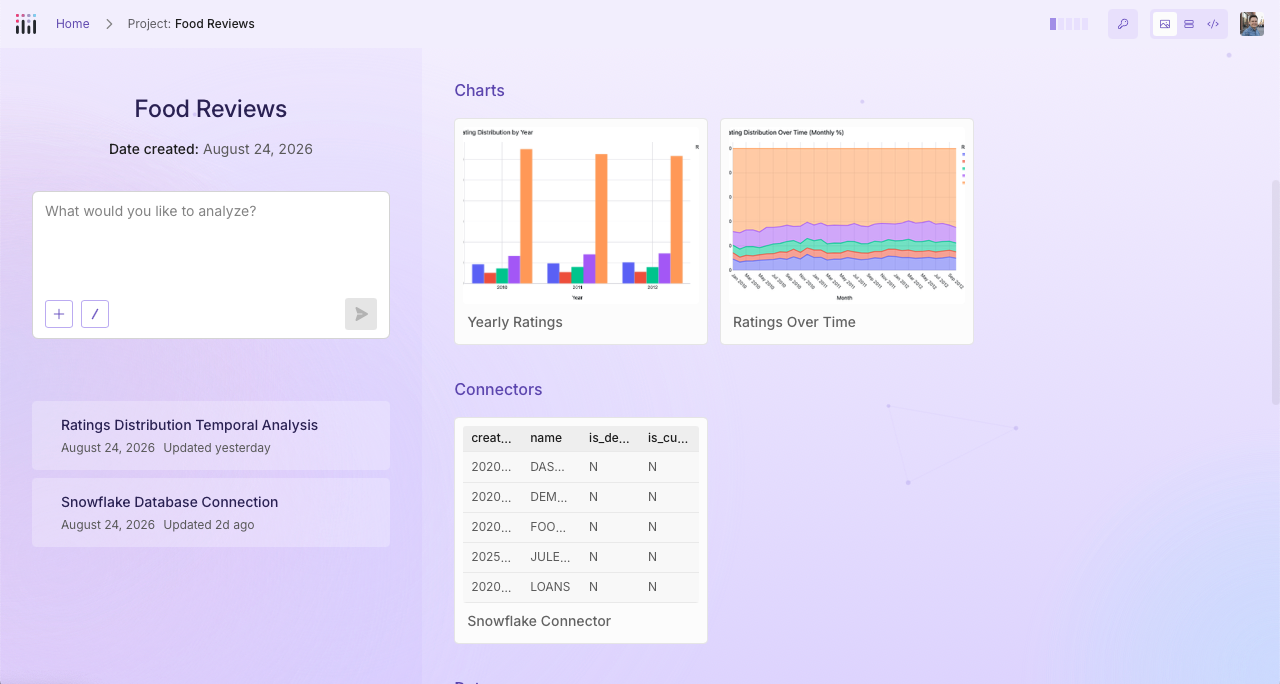
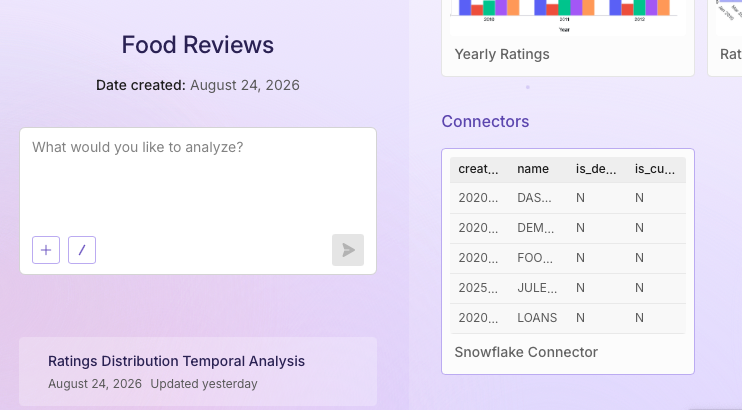
The project overview screen lists every session and artifact in the project. Artifacts are organized into categories: tables, charts, reports, and apps. Use it to see everything that has been produced across all sessions in the project at a glance.
Sessions and projects
By default, starting a new conversation creates a project. Once your project has been created, you can create additional sessions by entering a prompt on the project overview screen. Every session within a project has independent read and write access to the project's artifacts. For example, one session might generate a chart, while another session in the same project might read that chart and build a report around it.
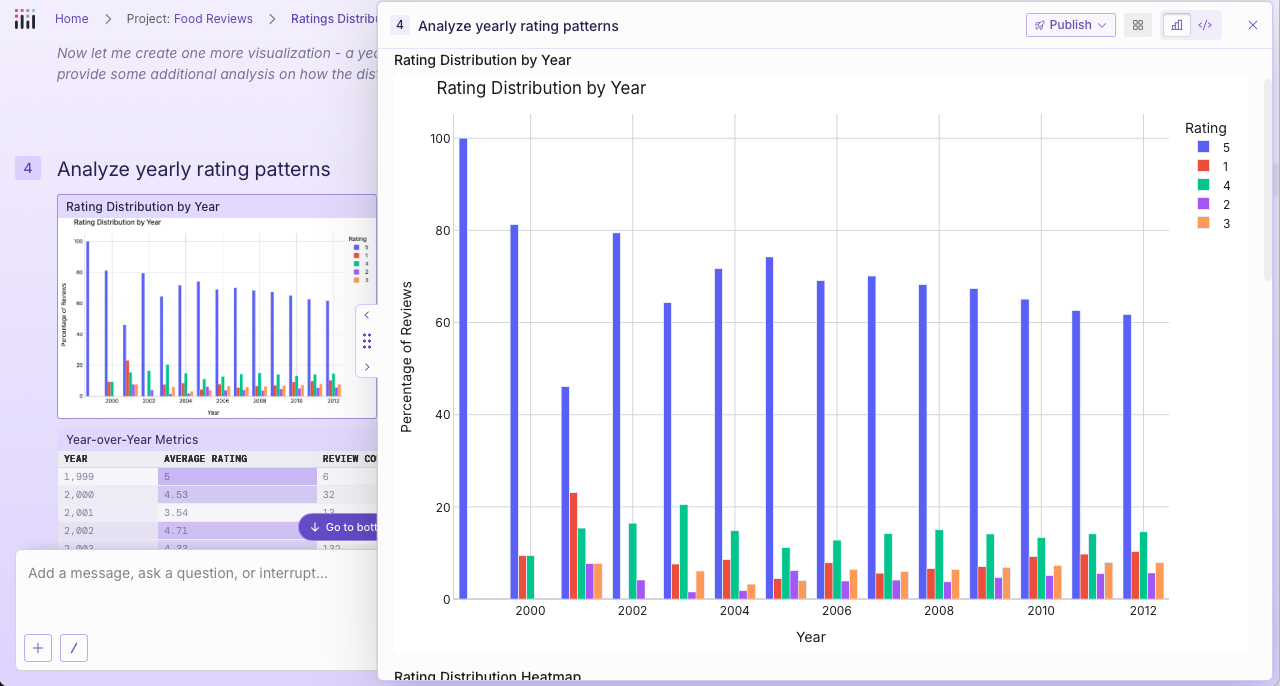
Artifacts
In a project, artifacts, such as tables, charts, reports, and apps, are stored at the project level rather than belonging to a single session. Artifacts are automatically tracked at the time of creation, and can be read or modified from any session within the project.
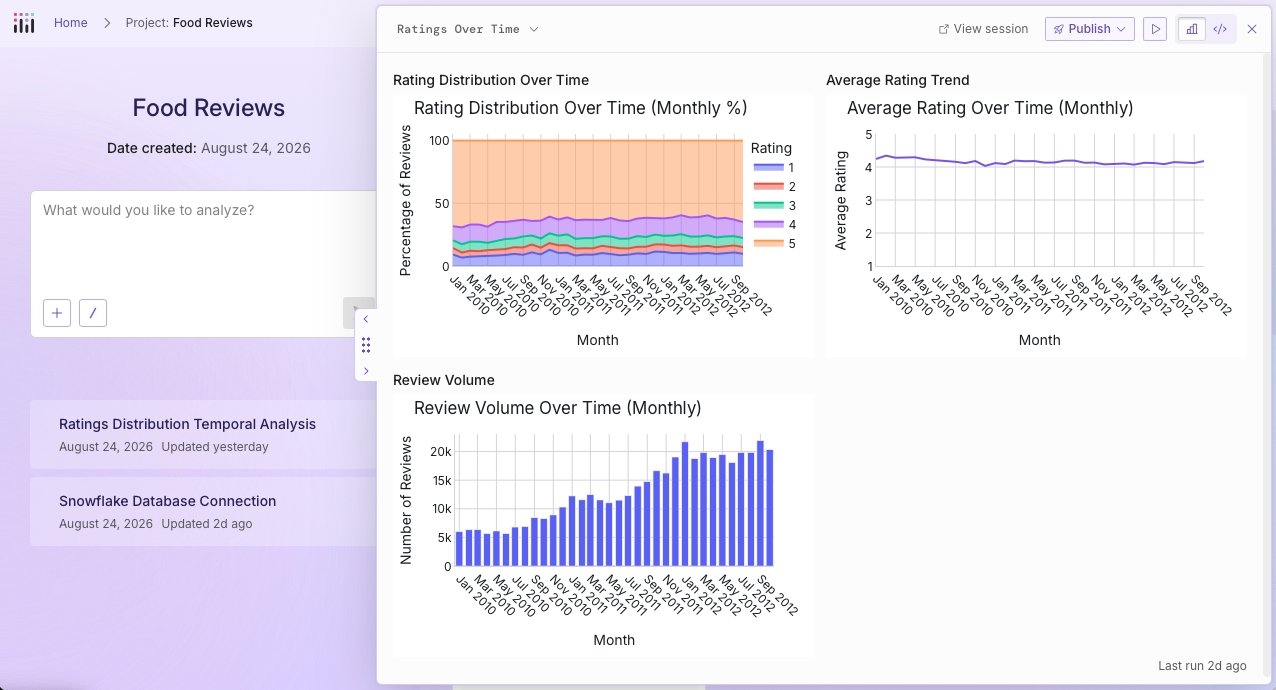
Artifact versions
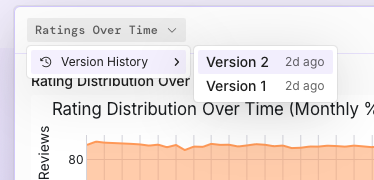
Plotly Studio tracks a version history for each artifact, starting when it's first created and continuing every time it's edited.
To revert an artifact to an earlier state:
- Open the artifact view from the project overview screen.
- Open the artifact's version history menu.
- Select the revision you want to restore.
- Confirm the restore.
Restoring a version replaces the artifact's current state with the selected version.
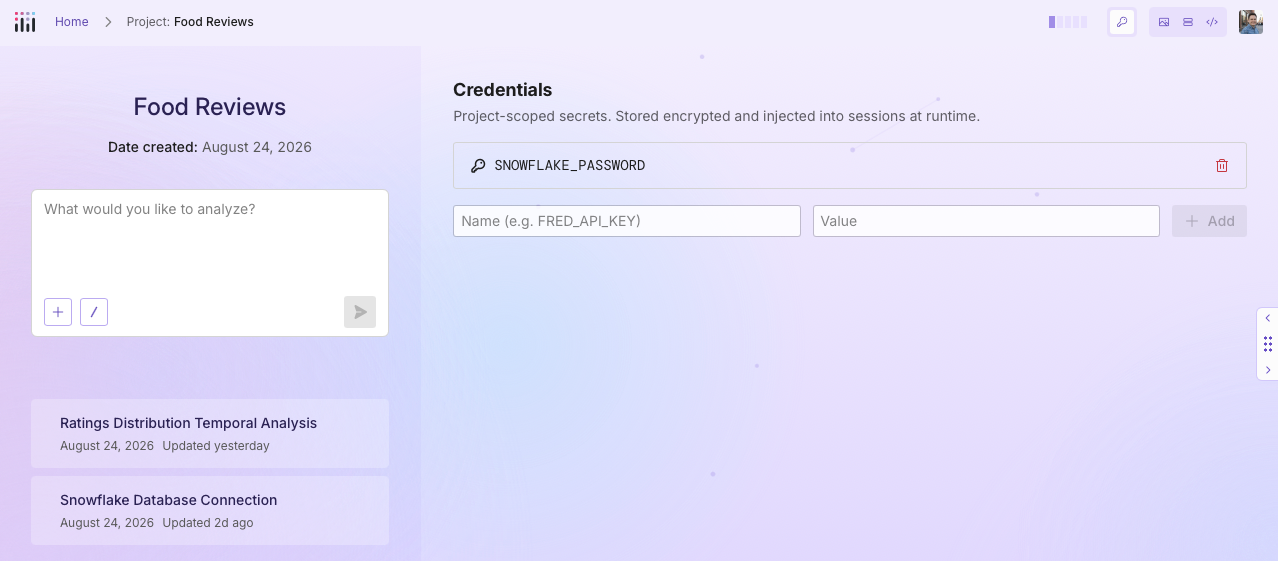
Data sources and credentials within a project
A project can hold more than one data source — for example, a data warehouse connection alongside an uploaded file — and each can have its own credentials. Data sources and their credentials are configured once per project and shared across all sessions within it. This means you don't need to reconnect to a data source or re-enter its credentials each time you start a new session in the same project.
Publishing from the project overview
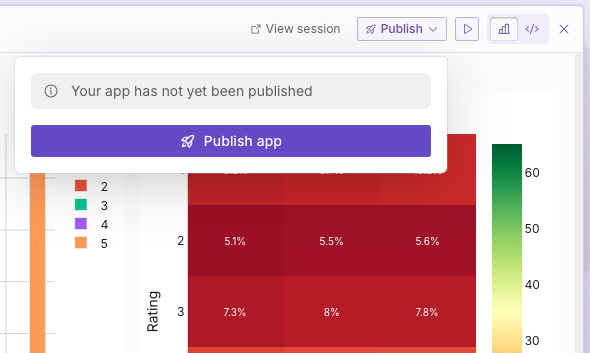
You can publish an artifact directly from a session or from the project overview screen.
Because a project artifact keeps the same ID across edits, republishing it updates the existing live app. This means that app viewers using the live app URL will see the newly updated artifact. See Publishing for the full publishing workflow.